
How to Fix Windows 11 Startup Problems

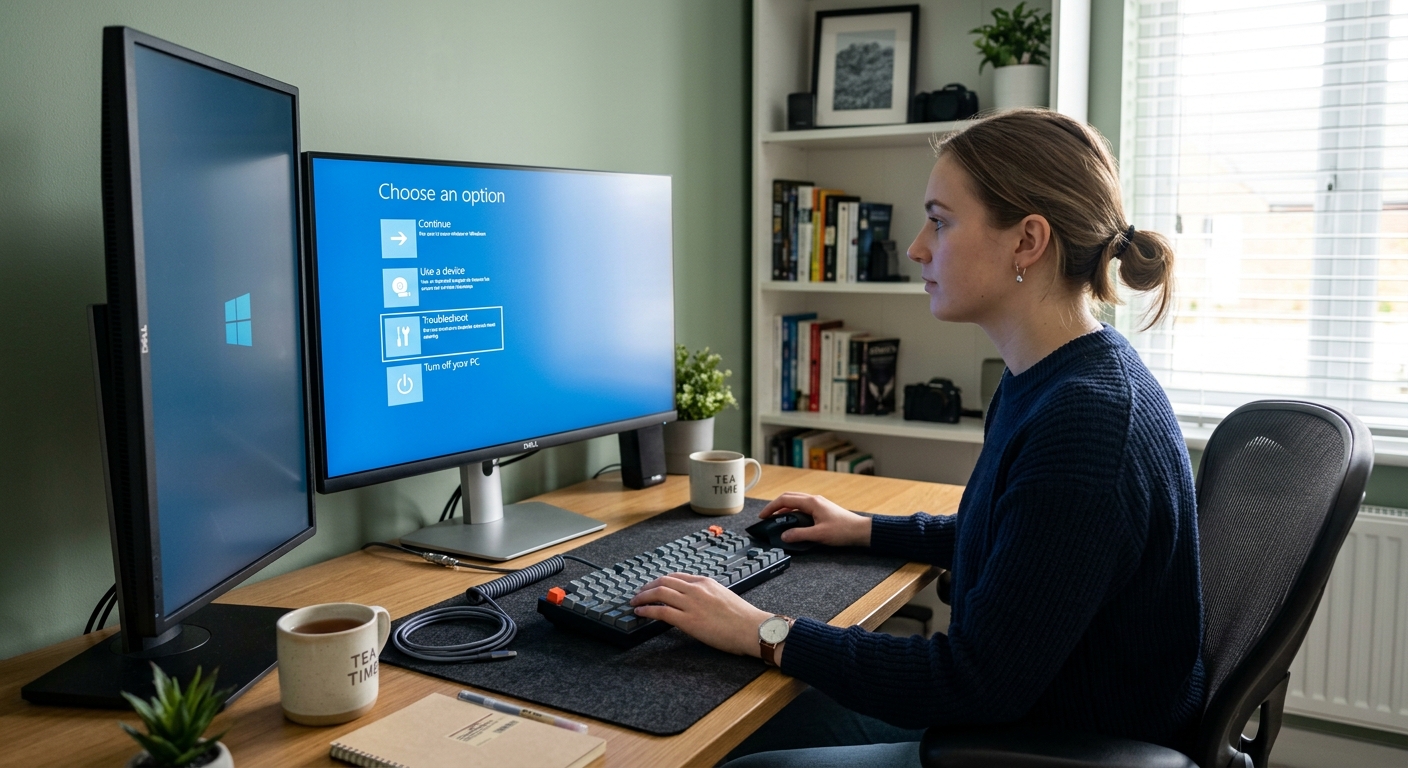
How to Fix Windows 11 Startup Problems
Few computer problems are as worrying as pressing the power button and finding that Windows 11 won’t start properly.
Your PC might remain stuck on the Windows logo, show a black screen, repeatedly restart, or display an automatic repair message.
Before assuming that something serious has happened, there are several troubleshooting steps worth trying.
This guide explains some of the most common Windows 11 startup problems and what you can do to get your PC running again.
Common Windows 11 Startup Problems
Startup problems can look different depending on what’s causing them.
You might see:
- Windows stuck on the loading screen
- A black screen after switching on the PC
- Automatic Repair appearing repeatedly
- Windows restarting continuously
- A blue screen during startup
- Windows failing to reach the desktop
- A recent update causing boot problems
- The computer showing an error before Windows loads
The correct solution depends on the symptoms.
1. Check Your Power and Connections
Start with the basics.
If you’re using a desktop computer, check that:
- The power cable is connected securely
- The monitor is switched on
- The monitor cable is connected correctly
- External devices aren’t preventing startup
For a laptop, connect the charger and allow the computer a few minutes before trying again.
2. Disconnect Unnecessary USB Devices
External devices can occasionally interfere with the startup process.
Disconnect unnecessary:
- USB drives
- External hard drives
- Printers
- Memory card readers
- USB hubs
Leave only essential devices connected and restart the computer.
If Windows starts normally afterwards, reconnect your devices one at a time to identify the possible cause.
3. Give Windows Time to Start
If Windows has recently installed an update, startup may take longer than usual.
Avoid repeatedly switching the computer off if Windows appears to be working.
Give the system some time to complete the process before trying more advanced troubleshooting.
4. Try Windows Startup Repair
Windows 11 includes recovery tools that can help repair certain startup problems.
If Windows enters the recovery environment, look for:
Troubleshoot → Advanced options → Startup Repair
Startup Repair can attempt to identify and fix certain problems preventing Windows from starting correctly.
5. Try Safe Mode
If normal startup continues to fail, Safe Mode can help determine whether a driver or application is causing the problem.
From Windows Recovery Environment, go to:
Troubleshoot → Advanced options → Startup Settings
Then restart and select the appropriate Safe Mode option.
If Windows works normally in Safe Mode, recently installed software, drivers or other changes may be worth investigating.
6. Check for Recent Updates
Sometimes startup problems begin shortly after a Windows update.
If you can access the Windows Recovery Environment, you may find options under:
Troubleshoot → Advanced options
Depending on your system, available recovery options can include uninstalling a recent update.
Only remove an update when there is a clear reason to believe it caused the startup problem.
7. Use System Restore When Available
If System Restore was previously enabled and restore points are available, it may be possible to return Windows to an earlier working state.
This can be useful when startup problems appeared after:
- Installing software
- Installing a driver
- Changing system settings
- Making another significant system change
System Restore is different from resetting Windows because it is designed to roll back certain system changes rather than completely reinstall Windows.
8. Check Your Display Connection
If the computer appears to start but the screen remains black, the problem may not actually be Windows failing to boot.
Check:
- Monitor power
- Display cable
- Correct monitor input
- HDMI or DisplayPort connection
- External graphics card connection
If possible, test the computer with another display or cable.
9. Consider a Windows Reset as a Last Resort
If you’ve tried the normal recovery options and Windows remains unstable, resetting Windows may be worth considering.
Windows 11 provides a Keep my files option that can preserve personal files while removing applications and resetting system settings.
We’ve covered this in detail in:
Blog 42 – How to Reset Windows 11 Without Losing Your Files
Always back up important data before performing major recovery operations.
What If Windows Is Stuck on the Logo?
If your computer repeatedly stops at the Windows logo:
- Disconnect unnecessary external devices.
- Restart the PC.
- Allow Windows time to complete any pending processes.
- Enter the Windows Recovery Environment if necessary.
- Try Startup Repair.
- Consider Safe Mode.
- Investigate recent drivers or updates.
Avoid repeatedly forcing the computer to shut down unless necessary.
What If Windows Shows a Black Screen?
A black screen doesn’t always mean Windows has failed.
Check your monitor and cables first.
If the computer appears to be running, try:
- Checking the display input
- Disconnecting additional monitors
- Restarting the PC
- Testing another display connection
If the problem continues, Windows recovery tools may help determine whether the issue is software-related.
Preventing Windows 11 Startup Problems
You can reduce the likelihood of future problems by:
- Keeping Windows updated
- Maintaining adequate storage space
- Using reliable drivers
- Avoiding questionable software
- Keeping important files backed up
- Creating recovery options before major system changes
Regular maintenance can make troubleshooting much easier if something goes wrong later.
Final Thoughts
Windows 11 startup problems can look serious, but they don’t always require a complete reinstall.
Start with the simplest checks, such as power, cables and external devices. If Windows still won’t start, use the built-in recovery environment, Startup Repair and Safe Mode before considering more drastic solutions.
And if you need additional help, our Windows Help Centre brings together guides covering activation, updates, Wi-Fi, Bluetooth, audio, recovery and other common Windows problems.
Frequently Asked Questions
Why won’t Windows 11 start?
Windows may fail to start because of a problematic update, driver issue, corrupted system files, hardware problem or another configuration issue.
What should I do if Windows 11 is stuck on the loading screen?
Disconnect unnecessary external devices and restart the computer. If the problem continues, access Windows Recovery Environment and try Startup Repair.
Can Safe Mode fix Windows 11 startup problems?
Safe Mode can help identify problems caused by certain drivers, applications or services. It is primarily a diagnostic and troubleshooting option.
Will resetting Windows 11 delete my files?
If you select Keep my files, Windows is designed to preserve personal files, although installed applications and some settings are removed. Always back up important files first.
Can a Windows update cause startup problems?
A problematic or incomplete update can sometimes contribute to startup issues. Windows Recovery Environment may provide options for troubleshooting recent updates.