
How to Fix Windows 11 Sound and Audio Problems

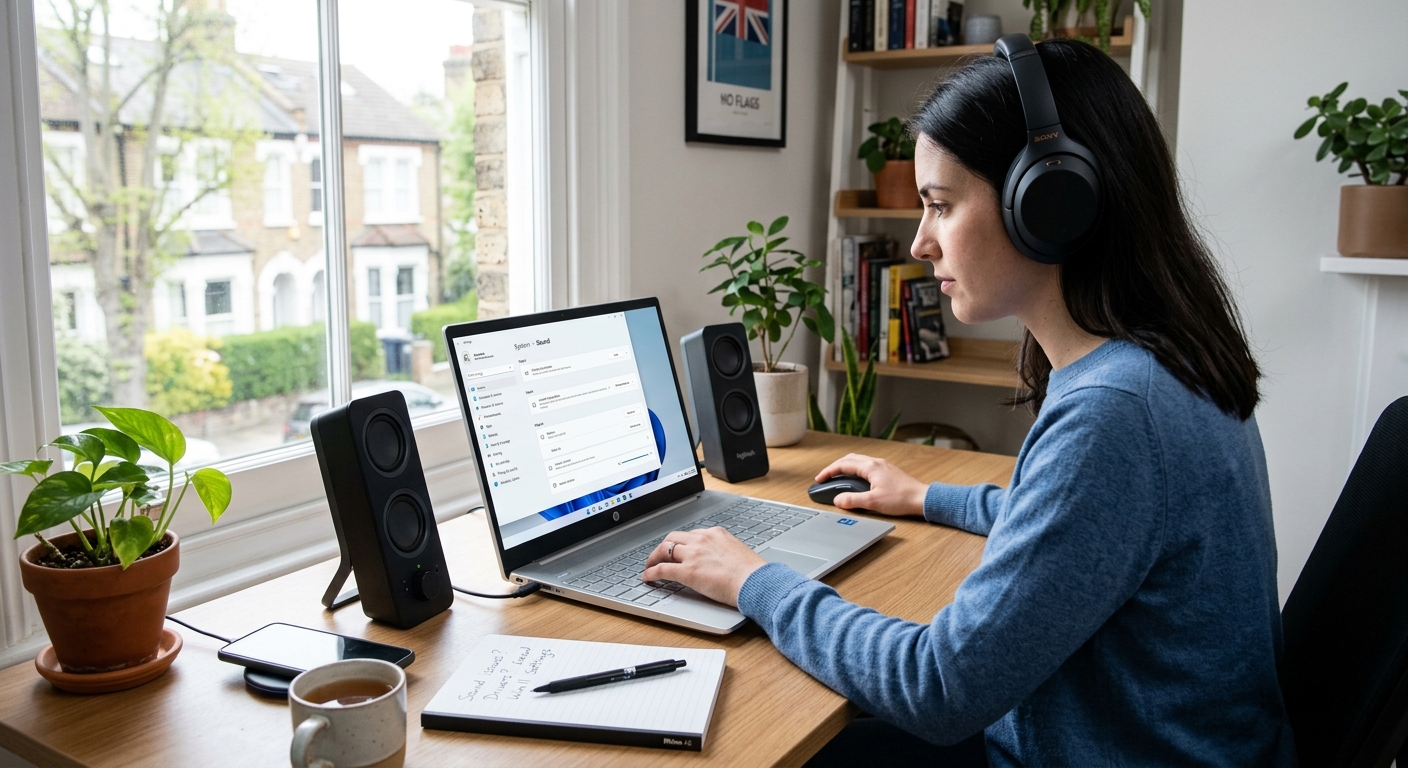
How to Fix Windows 11 Sound and Audio Problems
Few things are more frustrating than sitting down to watch a video or join an online meeting only to discover that your Windows 11 PC has no sound.
Sometimes the problem is as simple as having the wrong output device selected. In other cases, an outdated driver, muted application or Windows setting may be responsible.
The good news is that most Windows 11 sound problems can be fixed without specialist software.
Here are the most useful solutions to try.
Common Windows 11 Audio Problems
Windows audio problems can appear in several ways.
You might experience:
- No sound from your speakers
- Headphones not working
- Bluetooth headphones connected but silent
- Microphone not detected
- Very low volume
- Crackling or distorted sound
- Sound disappearing after an update
- Audio working in one application but not another
Start with the simplest checks before moving on to more advanced troubleshooting.
1. Check the Volume
First, make sure Windows isn’t muted.
Select the speaker icon on the taskbar and check the volume level.
Also check the volume controls on your:
- Monitor
- Speakers
- Headphones
- Keyboard
- External audio equipment
It sounds obvious, but this is one of the easiest problems to overlook.
2. Select the Correct Audio Output
Windows 11 can have several audio devices available at the same time.
For example, your computer may detect:
- Built-in speakers
- HDMI monitor audio
- USB headphones
- Bluetooth headphones
- External speakers
If Windows is sending sound to the wrong device, you may think your audio isn’t working.
Go to:
Settings → System → Sound
Under Output, select the device you actually want to use.
3. Check Bluetooth Headphones
If you’re using Bluetooth headphones or speakers, make sure they’re properly connected.
Try removing and pairing the device again if necessary.
For more detailed Bluetooth troubleshooting, see:
Blog 44 – How to Fix Bluetooth Problems in Windows 11
This creates a natural internal link between two related troubleshooting articles.
4. Check the Application Volume
Windows allows individual applications to have their own volume settings.
You may have sound working normally in Windows while a particular application is muted.
Open:
Settings → System → Sound → Volume mixer
Check the volume level for the application you’re using.
This can be particularly useful if:
- YouTube has no sound
- A game has no audio
- Teams or another meeting application has no sound
- Music applications are silent
5. Restart Your Computer
If the audio suddenly stopped working, restart Windows.
A restart can clear temporary software problems and restart audio services.
It’s a simple step, but worth trying before making more complicated changes.
6. Update Your Audio Driver
Outdated or incompatible drivers can cause Windows 11 audio problems.
Open Device Manager and look for:
Sound, video and game controllers
Check your audio device and look for available driver updates.
If your computer manufacturer provides a newer audio driver, installing the manufacturer’s recommended version can also help.
7. Check Windows Update
Audio problems can sometimes appear after system changes or updates.
Open:
Settings → Windows Update
Check for available updates and install anything relevant.
After updating, restart your computer and test the audio again.
This also connects naturally with your previous article:
Blog 41 – How to Fix Windows Update Errors in Windows 11
8. Check Your Microphone
If your speakers work but your microphone doesn’t, check your microphone settings separately.
Go to:
Settings → System → Sound → Input
Select the correct microphone and check the input volume.
Also make sure the application you’re using has permission to access your microphone.
This is particularly important for:
- Video calls
- Online meetings
- Voice recording
- Gaming
- Voice assistants
9. Run Windows Audio Troubleshooting
Windows 11 provides built-in troubleshooting tools that can help identify common audio problems.
Open the Windows troubleshooting options and follow the recommended audio steps.
Automated troubleshooting can be useful when you’re not sure whether the problem is caused by Windows settings, drivers or the audio device itself.
10. Check Physical Connections
If you’re using wired headphones or external speakers, check the physical connection.
Make sure:
- The cable is fully inserted
- The correct audio port is being used
- External speakers are switched on
- The speaker volume isn’t muted
- USB audio devices are properly connected
If possible, test the headphones or speakers on another device.
This can help determine whether the problem is with Windows or the hardware itself.
What If Sound Stopped After a Windows Update?
If your audio stopped immediately after an update, don’t assume your speakers have failed.
Check:
- Your selected output device
- Your audio driver
- Windows Update history
- Volume mixer settings
- Audio device status in Device Manager
If the issue began after a major Windows change, restoring or updating the relevant driver may resolve the problem.
How to Prevent Windows 11 Audio Problems
A few simple habits can reduce future problems:
- Keep Windows updated
- Keep audio drivers current
- Check your default output device
- Keep Bluetooth accessories charged
- Avoid installing unknown driver software
- Test audio devices before important meetings
These steps are especially useful if you rely on your computer for work or remote meetings.
Final Thoughts
Most Windows 11 sound problems can be fixed by checking the correct output device, reviewing volume settings, updating drivers and making sure Windows is up to date.
If you’re using Bluetooth headphones, don’t forget to check the Bluetooth connection as well.
Start with the simple solutions first. There’s no need to make complicated system changes until you’ve ruled out the basic causes.
Frequently Asked Questions
Why is there no sound on my Windows 11 PC?
Check the volume, selected output device, application volume and physical connections first. An outdated audio driver can also cause the problem.
Why are my Windows 11 speakers not working?
Your speakers may not be selected as the default output device, or the audio driver may have a problem. Check Settings → System → Sound first.
Why are my headphones connected but there is no sound?
Windows may be sending audio to another output device. Check your selected output under Settings → System → Sound.
Why is my Windows 11 microphone not working?
Check that the correct microphone is selected under Settings → System → Sound → Input and that the application has microphone permission.
Can Windows Update cause sound problems?
It can occasionally affect drivers or system settings. Checking Windows Update, restarting the PC and reviewing your audio driver can help.