How to Fix Windows 11 Blue Screen Errors

What Is a Windows 11 Blue Screen Error?
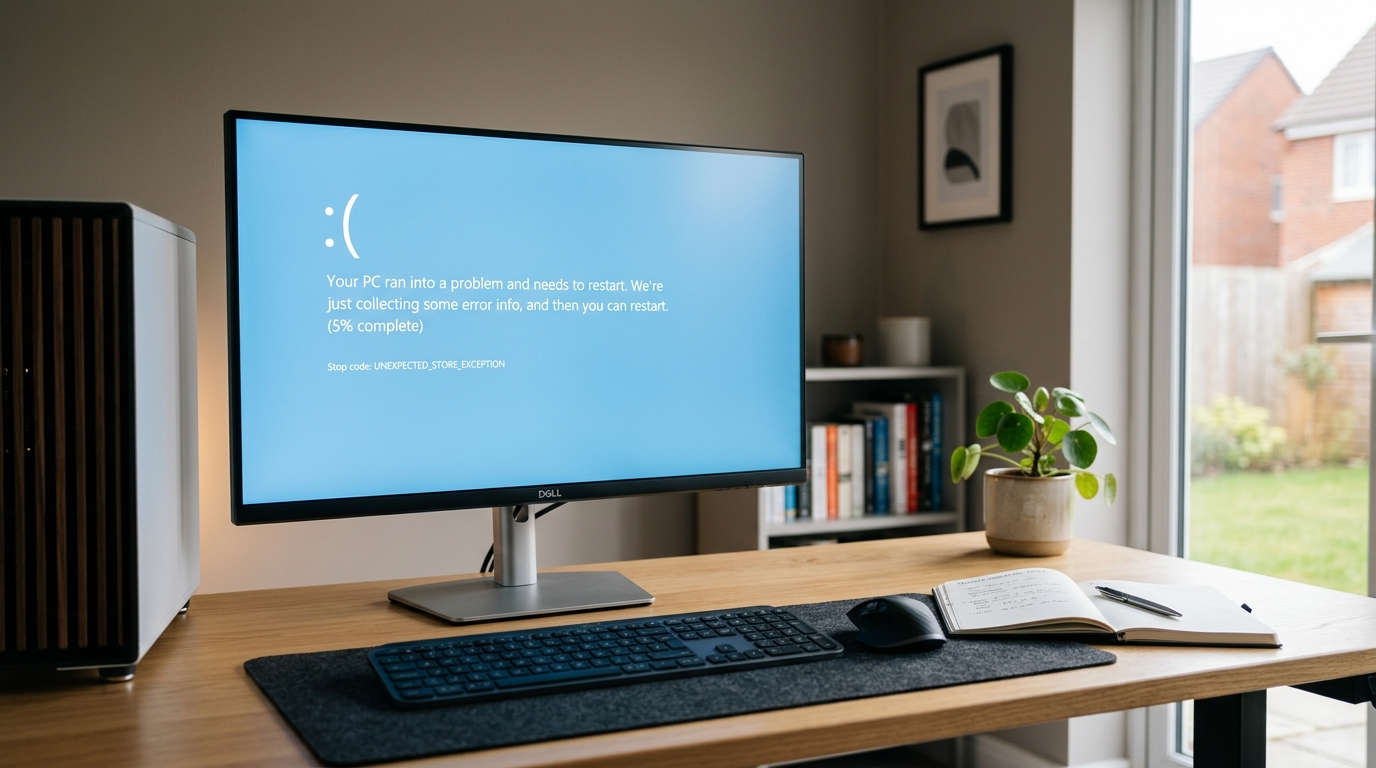
A blue screen error occurs when Windows encounters a serious problem and stops running to protect the system. You may see a message saying your device ran into a problem and needs to restart, along with a stop code.
These errors are often called the Blue Screen of Death (BSOD), although the screen’s appearance can vary between Windows versions.
According to Microsoft, possible causes include hardware devices, faulty drivers and software-related problems. The stop code can help narrow down the cause, although it doesn’t always identify the exact fault by itself. (Microsoft Support: Blue screen errors)
If you’re experiencing a Windows 11 blue screen error, don’t immediately assume that your computer is permanently damaged. Start with the basic checks below.
1. Write Down the Stop Code
When the blue screen appears, look for the stop code displayed on the screen.
Examples include:
MEMORY_MANAGEMENTPAGE_FAULT_IN_NONPAGED_AREASYSTEM_SERVICE_EXCEPTIONCRITICAL_PROCESS_DIEDWHEA_UNCORRECTABLE_ERROR
These codes point towards different types of system problems, but they are not definitive diagnoses.
If the computer restarts too quickly for you to read the message, check whether the same error appears again. Taking a photograph of the screen can help you record the exact code.
Tip: Note what you were doing just before the crash. For example, were you installing an update, opening a game, connecting a USB device or starting Windows? This information can be just as useful as the stop code.
2. Restart Your Computer
If the blue screen appears once and Windows starts normally afterwards, the problem may have been temporary.
Save your work once the PC has restarted, then check whether the error returns.
If it happens repeatedly, don’t ignore it. Recurring crashes may indicate an unresolved driver, hardware or operating-system issue.
If Windows keeps restarting before you can reach the desktop, move to the recovery steps later in this guide.
3. Disconnect Recently Added Hardware
Think about whether you’ve recently connected new hardware to your computer.
Examples include:
- USB storage devices
- External drives
- New printers
- USB hubs
- Recently installed expansion cards
- Other newly connected peripherals
Shut down the computer before removing external devices that can be safely disconnected. Leave essential devices connected and restart Windows.
If the crashes stop, reconnect the devices one at a time to help identify a possible cause.
Avoid opening your computer or removing internal components unless you’re comfortable doing so and can follow the manufacturer’s safety guidance.
4. Check Windows Update
A Windows update may provide security fixes, system improvements and compatible drivers.
If Windows starts normally, open:
Settings → Windows Update → Check for updates
Install appropriate available updates and restart your PC if prompted.
If the blue screen began immediately after a particular Windows update, however, don’t assume that installing more updates will automatically fix it. Record when the issue started and consider whether the recent update is relevant.
Our guide on how to fix Windows 11 update errors covers additional update troubleshooting.
5. Check Your Device Drivers
Drivers help Windows communicate with hardware such as graphics cards, network adapters and storage controllers.
An incompatible or faulty driver can contribute to blue screen errors.
To check for driver problems:
- Right-click Start and open Device Manager.
- Look for devices displaying a warning symbol.
- Identify the device associated with the problem, if known.
- Check Windows Update or the manufacturer’s official support website for a suitable driver.
- Restart the PC and see whether the error returns.
If the crashes started after updating a driver, check whether Device Manager offers a Roll Back Driver option.
Avoid installing drivers from unfamiliar download websites. Use Windows Update or the relevant hardware manufacturer’s official support resources.
6. Check Available Storage
Windows needs sufficient free disk space for temporary files, updates and other system operations.
If your main drive is almost full, free up space before attempting more complicated repairs.
Open:
Settings → System → Storage
Review the available space and remove files you no longer need.
You can also use Windows’ built-in storage tools to review temporary files. Check the contents carefully before deleting anything, particularly items in Downloads.
For more guidance, read our article on how to free up space on Windows 11.
7. Start Windows in Safe Mode
If the blue screen keeps returning, Safe Mode can help you investigate problems when Windows cannot operate normally.
Safe Mode starts Windows with a limited set of files and drivers. This can help you determine whether a recently installed driver or application is contributing to the issue.
If you can reach the desktop, you can access recovery settings through:
Settings → System → Recovery → Advanced startup
Choose Restart now, then navigate through the recovery menus to the startup settings options.
If Windows will not start, the Windows Recovery Environment may open automatically after repeated startup failures.
Be careful when changing startup settings. If your device uses BitLocker encryption, you may need your recovery key to access certain recovery tools.
See Microsoft’s Windows Recovery Environment guide for further instructions.
8. Check for Recently Installed Software
If the blue screen started after installing a new application, driver utility or system tool, investigate that change.
Consider whether you recently installed:
- Hardware management software
- System optimisation utilities
- Third-party antivirus software
- A new application that runs at startup
- Software that changes system settings
If you can start Windows normally or in Safe Mode, uninstalling a recently added application may help establish whether it is involved.
Don’t remove essential security software or system components without understanding the consequences. If you suspect a conflict, consult the software provider’s support guidance.
9. Run Windows System File Checks
If the problem continues, Windows has built-in tools for checking and repairing certain system-file problems.
System File Checker (SFC) can scan protected Windows system files and attempt to repair problems it detects.
This is an advanced troubleshooting step. Open Windows Terminal or Command Prompt with administrator permissions and follow Microsoft’s current instructions for system-file repair.
Don’t copy repair commands from an unfamiliar website or make unrelated registry changes in an attempt to fix a blue screen.
If the issue is caused by faulty hardware, a driver or an incompatible device, repairing Windows system files alone may not resolve it.
10. Investigate Memory or Hardware Problems
Some stop codes may be associated with memory or hardware faults.
For example, WHEA_UNCORRECTABLE_ERROR can indicate a hardware error. Microsoft recommends checking updates and drivers and considering appropriate Windows repair options when troubleshooting this particular error. (Microsoft Support: WHEA_UNCORRECTABLE_ERROR)
If memory is suspected, Windows includes a Windows Memory Diagnostic tool that can help check for memory problems.
Hardware diagnostics may also be available from your PC manufacturer.
If the computer repeatedly crashes, overheats, makes unusual noises or fails to start consistently, seek professional assistance rather than continuing to run potentially disruptive tests.
11. Uninstall a Recent Windows Update if Necessary
If the blue screen started immediately after a Windows update and continues to occur, removing that update may be worth considering.
If Windows starts normally, review the available update history and follow Microsoft’s supported removal procedure where appropriate.
If Windows won’t start, you may be able to access the option through the recovery environment:
Troubleshoot → Advanced options → Uninstall Updates
The exact options available depend on your Windows installation and the update involved.
Before making changes, back up important data if possible. Microsoft explains the available choices in its Windows recovery options guide.
12. Use Windows Recovery Options
If the problem persists, choose a recovery method that matches the symptoms.
Possible options include:
- Startup Repair: For certain problems preventing Windows from starting.
- System Restore: To return system files and settings to an earlier restore point, if one is available.
- Uninstall Updates: If the issue appears to be linked to a recent update.
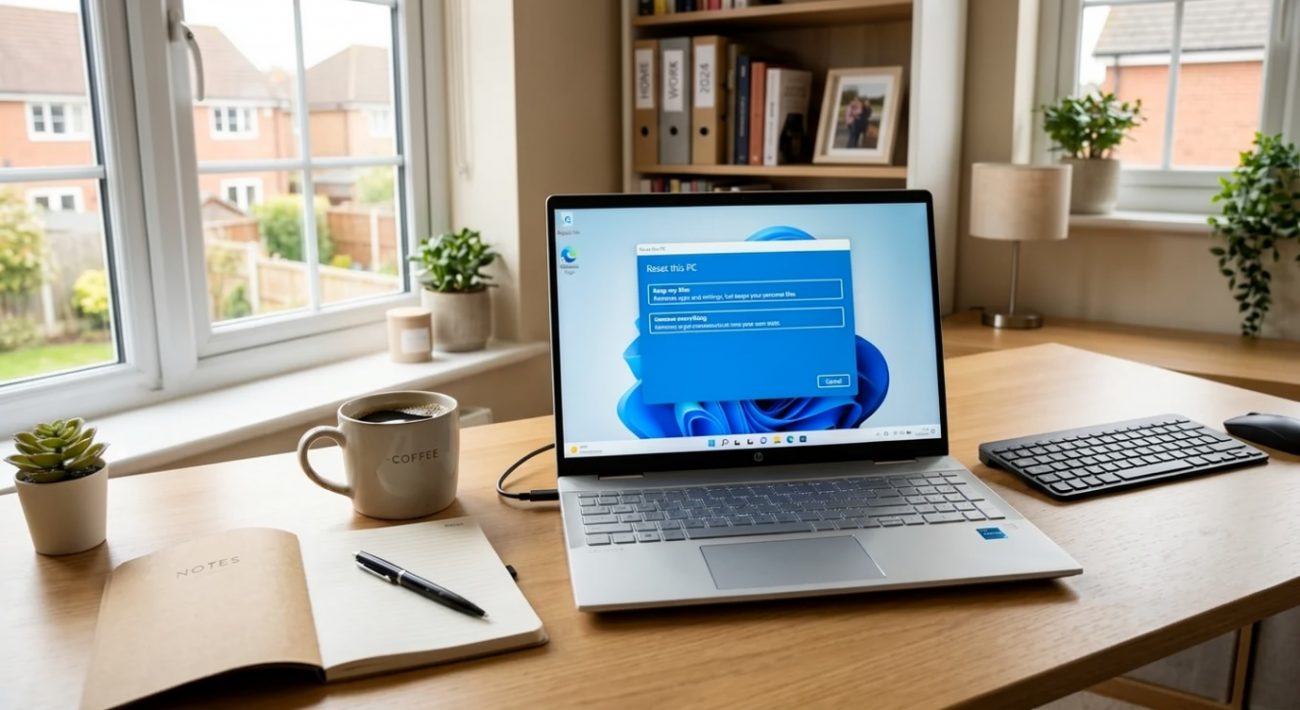
- Reset this PC: A more disruptive option if other approaches fail.
Recovery options don’t all have the same effect on your files, applications or settings. Read the descriptions carefully before proceeding.
Back up important files whenever possible. If BitLocker is enabled, make sure you can access the recovery key before entering recovery tools.
Why Does Windows 11 Keep Showing a Blue Screen?
Repeated blue screens usually need more investigation than a one-off crash.
The cause might be a faulty driver, incompatible hardware, a memory problem, damaged system files or another underlying issue.
Try to identify a pattern:
- Does the crash happen during startup?
- Does it happen when playing games or using demanding applications?
- Did it begin after a Windows or driver update?
- Does a particular device trigger the problem?
- Does the same stop code appear every time?
If the computer crashes during startup, our guide on how to fix Windows 11 startup problems may help you investigate the next steps.
If the PC is generally slow or unstable, see how to fix a slow Windows 11 PC.
How to Prevent Future Blue Screen Errors
You can’t prevent every system crash, but a few sensible habits can reduce avoidable problems.
- Keep Windows updated.
- Use drivers from Windows Update or official manufacturer websites.
- Avoid unknown driver-download utilities.
- Keep enough free storage.
- Back up important files regularly.
- Pay attention to recurring stop codes.
- Investigate new hardware or software if crashes begin soon after installation.
- Don’t ignore repeated crashes or signs of hardware failure.
A single blue screen may not indicate a serious ongoing fault. Repeated crashes deserve attention, particularly if you notice data corruption or startup problems.
Final Thoughts
A Windows 11 blue screen error can look alarming, but the right fix depends on the cause.
Start by recording the stop code and checking whether the crash repeats. Then investigate recently added hardware, drivers, Windows updates and available storage.
If Windows won’t start, use the recovery options carefully and back up your files whenever possible. Avoid jumping straight to a full reset or reinstall before trying less disruptive solutions.
If the same error keeps returning, the stop code and the circumstances around the crash can help you decide whether to investigate software, drivers or hardware next.
Frequently Asked Questions
What causes a Windows 11 blue screen error?
Possible causes include faulty drivers, hardware problems, software conflicts and Windows system issues. The stop code can help narrow down the cause, but further troubleshooting may be needed.
Will a blue screen damage my computer?
A blue screen is Windows’ response to a serious system problem. A single occurrence does not necessarily mean the hardware is damaged, but repeated crashes should be investigated.
How do I find my Windows 11 stop code?
Look for the stop code on the error screen. If the message disappears quickly, take a photograph the next time it appears and record what you were doing beforehand.
Should I reinstall Windows after a blue screen?
Not usually as the first step. Check drivers, hardware, updates and system files before considering recovery or reinstallation.
What if Windows 11 keeps restarting after a blue screen?
If Windows cannot reach the desktop, use the Windows Recovery Environment to investigate options such as Safe Mode, Startup Repair or uninstalling a recent update. Back up your data where possible.
Can a driver cause a blue screen?
Yes. Incompatible or faulty drivers can cause stop errors. Check Device Manager and use Windows Update or the hardware manufacturer’s official website to obtain appropriate drivers.