
How to Reset Windows 11 Without Losing Your Files

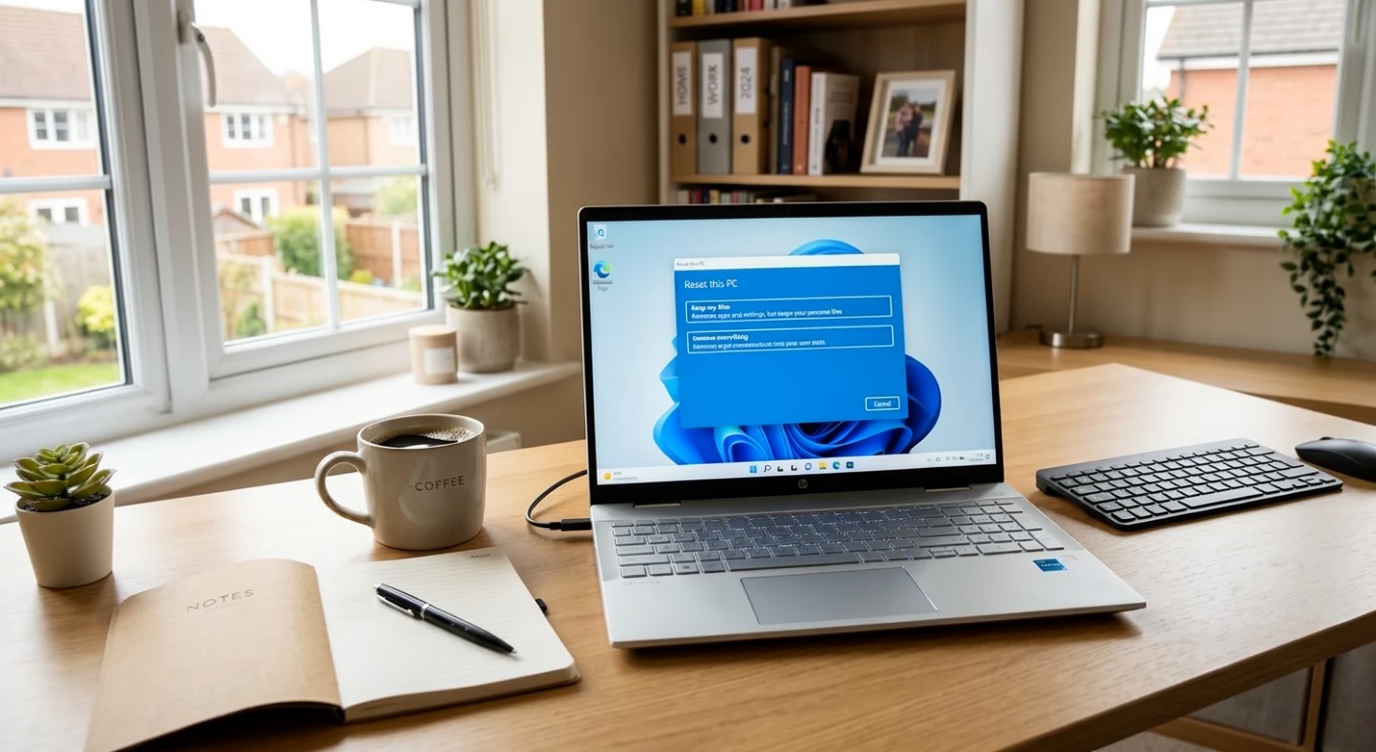
How to Reset Windows 11 Without Losing Your Files
Over time, even a well-maintained computer can start to slow down or develop unexpected issues. Programs may stop responding, updates might fail, or Windows could become unstable after installing new software.
Before considering a complete reinstall, there’s another option worth trying. Windows 11 includes a built-in reset feature that allows you to refresh the operating system while keeping your personal files.
In this guide, you’ll learn how to reset Windows 11 without losing your files and when it’s the right solution.
When Should You Reset Windows 11?
A reset can help if you’re experiencing:
- Frequent system crashes
- Slow performance
- Windows Update problems
- Software conflicts
- Startup issues
- Unexplained error messages
If basic troubleshooting hasn’t solved the problem, resetting Windows can often restore stability.
Will My Files Be Deleted?
When using the Keep my files option, Windows keeps your personal files, including:
- Documents
- Photos
- Videos
- Music
- Desktop files
However, Windows will remove:
- Installed applications
- Third-party software
- Custom system settings
- Device drivers that aren’t included with Windows
It’s still recommended to back up important files before starting.
How to Reset Windows 11
Follow these steps:
- Open Settings
- Select System
- Click Recovery
- Under Recovery options, choose Reset this PC
- Click Keep my files
- Follow the on-screen instructions
Windows will prepare the reset and restart your computer automatically.
Choose How to Reinstall Windows
You’ll usually see two options:
Cloud Download
- Downloads a fresh copy of Windows from Microsoft
- Requires a reliable internet connection
- Useful if system files are damaged
Local Reinstall
- Uses existing files already stored on your PC
- Faster if your local installation isn’t corrupted
- Doesn’t require downloading Windows
Choose the option that best suits your situation.
What Happens After the Reset?
Once the reset is complete, you’ll need to:
- Sign in to Windows
- Reinstall your applications
- Check for Windows Updates
- Reconnect printers or other devices if necessary
Your personal files should still be available.
Tips Before Resetting
To make the process smoother:
- Back up important files
- Ensure your laptop is connected to power
- Keep your Windows licence linked to your Microsoft account
- Make a list of software you’ll need to reinstall
Preparing in advance can save time afterwards.
Final Thoughts
Learning how to reset Windows 11 without losing your files is useful for anyone experiencing persistent Windows problems. The built-in reset feature provides a convenient way to refresh your system while protecting your personal documents and photos.
If your computer has become unstable or noticeably slower, a reset may help restore performance without the need for a complete reinstall.
❓ Frequently Asked Questions
Will resetting Windows 11 delete my documents?
No. If you choose Keep my files, your personal documents, photos, and other files remain on your computer. Installed applications and some settings will be removed.
Should I back up my files before resetting Windows?
Yes. Although the reset process is designed to preserve personal files, creating a backup is always recommended before making major system changes.
How long does a Windows 11 reset take?
Most resets take between 30 minutes and 2 hours, depending on your computer and whether you choose a cloud download or local reinstall.
Will I need to activate Windows again after resetting?
In most cases, no. If your Windows licence is linked to your Microsoft account or your device’s digital licence, Windows should reactivate automatically after the reset.