Windows 11 File Explorer Not Responding? Start Here

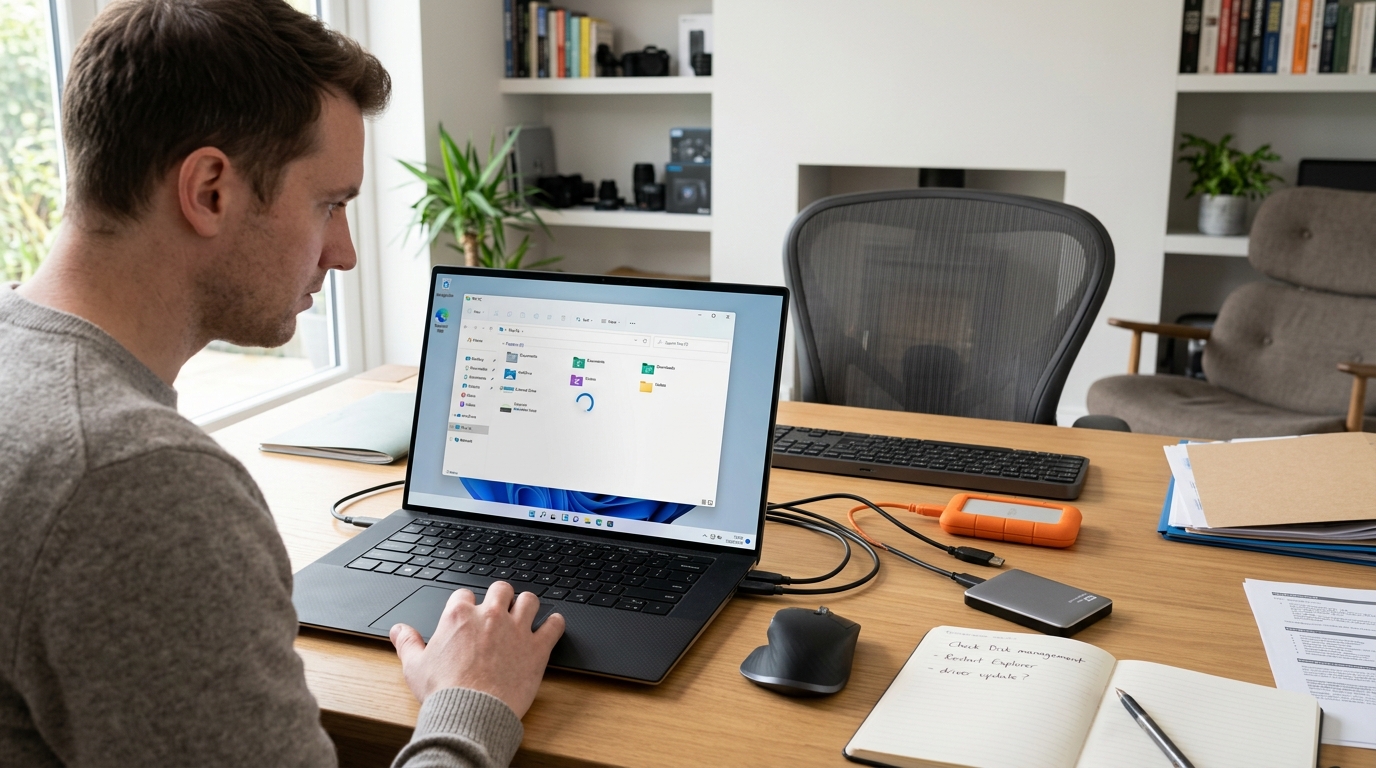
File Explorer is something most Windows users rely on every day. Whether you’re opening Downloads, moving documents, browsing an external drive or managing photos, you expect it to respond immediately.
But sometimes File Explorer freezes, takes a long time to open or shows the dreaded Not responding message.
If you’re experiencing Windows 11 File Explorer not responding, don’t immediately assume that Windows needs to be reinstalled.
The cause can be relatively simple, such as a temporary Explorer process problem, an available Windows update, limited storage or an issue with a particular folder or drive. Microsoft also recommends checking updates, restarting the device and using Windows recovery or repair options when simpler steps don’t resolve the problem.
Work through the following fixes in order.
1. Restart Windows Explorer
The first thing to try when File Explorer freezes is restarting the Windows Explorer process.
Press:
Ctrl + Shift + Esc
to open Task Manager.
Find Windows Explorer in the list of processes.
Right-click it and select:
Restart
Your taskbar and desktop may briefly disappear before returning. This is normal.
Now press:
Windows key + E
to open File Explorer again.
If the problem was caused by a temporary Explorer process issue, this may be enough to get things working again.
2. Restart Your PC
If restarting Windows Explorer hasn’t solved the problem, restart your computer.
A full restart can clear temporary system problems and ensure pending updates are properly applied.
Microsoft recommends restarting the device as one of the basic steps when File Explorer won’t open or start.
After restarting, try opening a few different folders.
If File Explorer works normally after the restart but begins freezing again later, continue with the steps below.
3. Check for Windows 11 Updates
An outdated Windows installation can sometimes contribute to system problems.
Open:
Settings → Windows Update
Then select:
Check for updates
Install any available updates and restart your computer if required.
Microsoft’s current File Explorer troubleshooting guidance specifically recommends checking for Windows updates when File Explorer isn’t opening or starting correctly.
If you’ve already experienced other update-related problems, our guide on how to fix Windows 11 update errors may also help.
4. Check Whether One Folder Causes the Freeze
This is an important test.
Don’t assume that File Explorer itself is completely broken.
Try opening:
- Documents
- Downloads
- Pictures
- Desktop
- This PC
If most folders work but one particular folder causes Explorer to freeze, the problem may be related to that location rather than File Explorer as a whole.
You should also test whether the issue happens with:
- An external USB drive
- A network drive
- A cloud-synchronised folder
- A folder containing many images or videos
Finding a pattern can make troubleshooting much easier.
5. Disconnect External Drives
If File Explorer freezes when you open This PC, check whether an external device is connected.
USB hard drives, memory cards and other storage devices can sometimes cause delays if Windows is having difficulty communicating with them.
Safely disconnect unnecessary external storage and test File Explorer again.
If Explorer becomes responsive afterwards, reconnect devices one at a time to identify which one is causing the problem.
This is particularly useful if the problem only started after connecting a new drive.
6. Check Available Storage
Low disk space can affect overall Windows performance.
Open:
Settings → System → Storage
and check how much space remains on your main drive.
You can also open This PC and check the available space under your drives.
Microsoft notes that running out of storage can contribute to slower performance and problems with installing Windows updates.
If your drive is nearly full, don’t ignore the warning.
Our guide on how to free up space on Windows 11 covers practical ways to remove unnecessary files and reclaim storage.
7. Clear Unnecessary Files
If your PC is low on storage, use Windows’ built-in storage tools to remove files you no longer need.
You can review:
- Temporary files
- Recycle Bin contents
- Previous Windows installation files
- Downloads
- Large unused files
- Unused applications
Be careful when deleting files manually, particularly from the Downloads folder.
If you’re unsure whether something is safe to remove, leave it alone until you’ve identified what it is.
8. Check for a Problem With File Previews
File Explorer may behave differently when browsing folders containing lots of images, videos or documents.
If Explorer becomes slow when opening a particular folder, try changing how files are displayed.
For example, switch from a large thumbnail view to a simpler list or details view.
You can also test whether disabling preview-related features changes the behaviour.
If the problem only appears in folders containing media files, this gives you an important clue about where to concentrate your troubleshooting.
9. Restart Windows Explorer From Task Manager
If File Explorer has completely frozen and you cannot close the window normally, Task Manager can still help.
Press:
Ctrl + Shift + Esc
Select Windows Explorer.
Choose Restart.
If Windows Explorer isn’t listed, you can use Task Manager’s option to run a new task and enter:
explorer.exe
This can bring the Windows desktop and File Explorer process back.
Microsoft also documents restarting Windows Explorer as a useful step for certain Windows interface problems.
10. Check Windows System Files
If File Explorer continues crashing or freezing, damaged system files may be worth investigating.
Windows includes built-in repair tools that can check system files.
One commonly used option is System File Checker (SFC).
Open Windows Terminal or Command Prompt as administrator and use the appropriate Microsoft-supported repair procedure.
If you’re not comfortable using command-line repair tools, avoid copying commands from random websites. Microsoft’s support documentation should be your reference for the exact commands and process.
System-file repair is more advanced than simply restarting Explorer, so it’s better to try the simpler solutions first.
11. Check Your PC’s Overall Performance
If File Explorer isn’t the only application behaving slowly, the problem may be broader than Explorer.
For example, you may notice:
- Windows taking a long time to start
- Applications opening slowly
- The taskbar freezing
- Settings taking a long time to load
- High disk usage
- Low available storage
- Background applications consuming resources
If the entire PC feels sluggish, read our guide on how to fix a slow Windows 11 PC.
Microsoft also lists limited storage, background applications, outdated software and hardware limitations among factors that can affect Windows performance.
12. Check Cloud-Synchronised Folders
If File Explorer freezes specifically when opening a cloud-synchronised folder, check whether the issue is related to synchronisation.
For example, try opening a normal local folder first.
If local folders work but a synchronised folder freezes, investigate the cloud-storage application and its current sync status.
This can help distinguish a general Windows Explorer problem from a problem involving a particular location.
13. Check Recently Installed Software
Think about when the problem started.
Did you recently install:
- File compression software?
- A cloud-storage application?
- Security software?
- A graphics utility?
- A file-management tool?
- A context-menu extension?
Some third-party applications integrate with File Explorer.
If the problem appeared immediately after installing or updating another application, check that application’s support information before making major Windows changes.
14. Run Windows Troubleshooting and Repair Options
If the simpler fixes haven’t helped, Windows provides additional troubleshooting and recovery options.
Microsoft recommends using recovery options progressively, starting with less disruptive approaches before moving towards more significant recovery actions.
This is important because a full reset or reinstall shouldn’t normally be your first response to a File Explorer problem.
Before using any recovery option that could affect applications or personal data, make sure important files are backed up.
Windows 11 File Explorer Still Not Responding?
At this stage, try to identify exactly when the freeze occurs.
File Explorer won’t open at all
Try:
- Restarting Windows
- Checking Windows Update
- Restarting Windows Explorer
- Checking system files
- Reviewing Windows recovery options
File Explorer opens but freezes
Check:
- Specific folders
- External drives
- Cloud-synchronised folders
- Available storage
- Recent software installations
File Explorer is very slow
Check:
- Available storage
- Overall Windows performance
- Large folders
- External or network drives
- Background applications
File Explorer crashes when opening one folder
Test another folder.
If only one location causes the problem, investigate that folder, drive or synchronisation service rather than immediately resetting Windows.
Can Low Storage Cause File Explorer Problems?
Low storage can contribute to wider Windows performance issues.
If your main drive is almost full, Windows may become slower and other operations can take longer. Microsoft recommends freeing up drive space when storage is running low.
For practical steps, see our guide on how to free up space on Windows 11.
Should You Reset Windows 11?
A Windows reset should be considered a later troubleshooting option rather than the first step.
If File Explorer is the only problem, try the less disruptive fixes first.
If the entire operating system is experiencing repeated crashes, freezes or other serious issues, Windows recovery options may become appropriate.
Before using a recovery option, back up important files.
Microsoft specifically advises backing up important data before using recovery options that could result in data loss.
Our guide on how to reset Windows 11 without losing your files can help you understand the process before taking that step.
Final Thoughts
Windows 11 File Explorer not responding can be caused by several different issues, so there isn’t one fix that works for every PC.
Start with the simple options: restart Windows Explorer, restart your computer and install available Windows updates.
Then look for patterns. Does File Explorer freeze with one particular folder? Does it happen when an external drive is connected? Is your storage nearly full? Did the problem begin after installing new software?
Those clues can help you find the cause without making unnecessary changes to Windows.
If the problem continues, move gradually towards system-file checks and Windows recovery options rather than immediately performing a complete reset.
Frequently Asked Questions
Why is Windows 11 File Explorer not responding?
File Explorer can become unresponsive for different reasons, including temporary Explorer problems, Windows updates, storage limitations, problematic folders, external drives or wider system issues.
How do I restart File Explorer in Windows 11?
Press Ctrl + Shift + Esc, find Windows Explorer in Task Manager, right-click it and select Restart.
Why does File Explorer freeze when I open one particular folder?
The issue may be related to that folder, its contents, an external drive, a network location or synchronisation. Test other folders to see whether the problem is isolated.
Can low storage make File Explorer slow?
Low storage can contribute to slower Windows performance. Check Settings → System → Storage and remove unnecessary files if your drive is nearly full.
Should I reset Windows if File Explorer keeps freezing?
Not immediately. Try restarting Explorer, installing updates, checking storage and investigating the specific pattern first. Windows recovery options can be considered if other troubleshooting doesn’t resolve the problem.
Does Windows 11 File Explorer work with external drives?
Yes. File Explorer is designed to access local drives, external storage and network locations. If Explorer freezes only when accessing a particular drive, investigate that drive or connection separately.