
How to Fix a Slow Windows 11 PC: Easy Ways to Speed It Up

How to Fix a Slow Windows 11 PC: Easy Ways to Speed It Up
A new Windows 11 computer can feel fast and responsive, but performance can gradually decline as applications, files and background processes build up.
You might notice that Windows takes longer to start, applications take more time to open, or the computer becomes sluggish when several programs are running.
If your Windows 11 is running slow, don’t immediately assume you need a new PC. There are several things you can check first.
Why Is Windows 11 Running Slow?
There isn’t always one single cause.
Common reasons include:
- Too many startup applications
- Low available storage
- Too many background processes
- Outdated drivers
- Pending Windows updates
- Limited RAM
- An ageing storage drive
- Unnecessary applications
- Malware or other unwanted software
Working through the basics can often make a noticeable difference.
1. Restart Your PC
If your computer has been running for days, start with a simple restart.
Restarting Windows can close temporary processes and clear resources that applications have been using.
Select:
Start → Power → Restart
After restarting, check whether the performance has improved.
2. Check Which Apps Are Using Your Resources
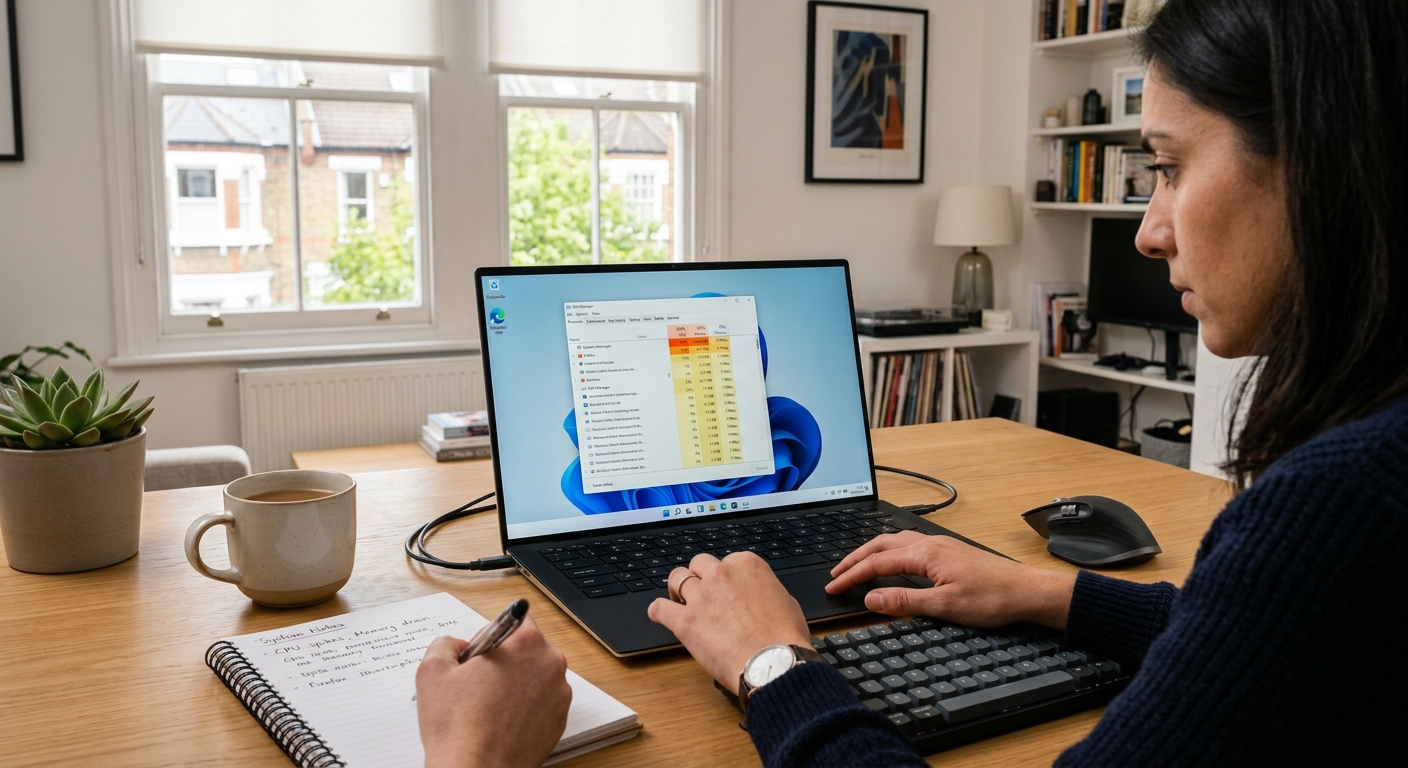
Windows 11 includes Task Manager, which can help you identify applications using a large amount of system resources.
Press:
Ctrl + Shift + Esc
Look at the Processes section.
Pay particular attention to applications using unusually high amounts of:
- CPU
- Memory
- Disk
If an application is consuming resources unnecessarily, closing it may improve responsiveness.
3. Disable Unnecessary Startup Apps
Some applications automatically start every time you turn on your computer.
Having too many startup applications can increase boot time and consume memory in the background.
Open:
Settings → Apps → Startup
Review the list and disable applications you don’t need to launch automatically.
You can also manage startup applications through Task Manager.
4. Free Up Storage Space
A nearly full system drive can contribute to performance problems and make everyday maintenance more difficult.
Check your storage under:
Settings → System → Storage
Remove unnecessary files and applications where appropriate.
Windows also includes Storage Sense, which can automatically remove certain temporary files.
5. Uninstall Programs You Don’t Use
Over time, it’s easy to accumulate applications that are no longer needed.
Go to:
Settings → Apps → Installed apps
Review the list and remove software you no longer use.
Be careful not to uninstall drivers or system components unless you know what they are.
6. Check Windows Update
Microsoft regularly provides Windows updates containing security improvements, bug fixes and other changes.
Go to:
Settings → Windows Update
Install available updates and restart your computer if required.
If Windows Update itself isn’t working correctly, see our guide:
Blog 41 – How to Fix Windows 11 Update Errors
7. Check Your Drivers
Outdated or problematic drivers can affect system performance.
Important drivers include:
- Graphics drivers
- Chipset drivers
- Storage drivers
- Network drivers
Use your computer manufacturer’s recommended drivers where appropriate.
Avoid downloading drivers from unfamiliar websites.
8. Check for Background Applications
Cloud storage tools, messaging applications, browsers and other programs can continue running in the background.
If your PC becomes slow after opening several applications, close anything you’re not currently using.
This can be particularly helpful on computers with limited memory.
9. Check Your Hardware
Sometimes slow performance isn’t caused by Windows itself.
Older computers may have:
- Limited RAM
- Traditional hard disk drives
- Older processors
- Ageing storage hardware
If your PC has an older mechanical hard drive, moving to a compatible SSD can make everyday tasks feel considerably more responsive.
10. Consider Resetting Windows
If you’ve tried the basic fixes and your computer is still extremely slow, resetting Windows may be worth considering.
Windows 11 includes a Keep my files option that can preserve personal files while removing applications and resetting system settings.
Before doing this, make sure important files are backed up.
For a complete guide, see:
Blog 42 – How to Reset Windows 11 Without Losing Your Files
What If Windows 11 Became Slow Suddenly?
A sudden performance drop deserves a little more investigation.
Think about what changed shortly before the problem started.
For example:
- Did you install a new application?
- Did Windows recently update?
- Did you install a new driver?
- Did you connect new hardware?
- Is your storage almost full?
Identifying what changed can make troubleshooting much easier.
How to Keep Windows 11 Running Smoothly
A little maintenance can help prevent performance problems.
Keep Windows Updated
Install important Windows updates regularly.
Keep Enough Free Storage
Avoid allowing your system drive to become completely full.
Review Startup Applications
Only allow applications you actually need to launch automatically.
Remove Unused Software
Uninstall applications you no longer use.
Restart Regularly
A restart can clear temporary processes and give Windows a fresh start.
Final Thoughts
If your Windows 11 is running slow, there are several things you can try before spending money on a new computer.
Start by restarting the PC, checking Task Manager, disabling unnecessary startup applications and freeing up storage. Then look at Windows updates, drivers and hardware if the problem continues.
For persistent problems, Windows’ built-in recovery options can provide another route to a cleaner and more responsive installation.
Frequently Asked Questions
Why is Windows 11 running slow?
Common causes include too many startup applications, low storage, background processes, outdated drivers, limited memory and older hardware.
How can I make Windows 11 faster?
Start by disabling unnecessary startup applications, freeing storage, removing unused software, updating Windows and checking which applications are consuming system resources.
Does low storage make Windows 11 slow?
Very low available storage can contribute to performance and maintenance problems. Freeing unnecessary files is a useful troubleshooting step.
Can too many startup apps slow Windows 11?
Yes. Applications that automatically launch can increase startup time and consume system resources in the background.
Should I reset Windows 11 if it is slow?
A reset can be useful when other troubleshooting steps haven’t solved persistent problems. Back up important files before resetting your PC.