How to Fix Bluetooth Problems in Windows 11

How to Fix Bluetooth Problems in Windows 11
Bluetooth makes it easy to connect wireless headphones, keyboards, mice, speakers and other devices to your PC. But when Bluetooth suddenly stops working, finding the cause isn’t always obvious.
You might find that your device won’t pair, Bluetooth has disappeared from Windows, your headphones connect but produce no sound, or the connection keeps dropping.
Fortunately, many Windows 11 Bluetooth problems can be fixed without replacing your hardware.
In this guide, we’ll look at the most common problems and the practical steps you can try.
Common Windows 11 Bluetooth Problems
Bluetooth problems can appear in several different ways.
You may find that:
- Bluetooth won’t turn on
- Your Bluetooth device isn’t detected
- Your headphones won’t connect
- Bluetooth keeps disconnecting
- Your Bluetooth device connects but has no sound
- Bluetooth disappeared from Windows
- A keyboard or mouse won’t pair
- Bluetooth stopped working after a Windows update
Microsoft also identifies problems such as Bluetooth devices failing to pair, Bluetooth disappearing, disconnections and Bluetooth audio issues as common Windows problems.
1. Make Sure Bluetooth Is Turned On
Before changing any advanced settings, check that Bluetooth is actually enabled.
Open:
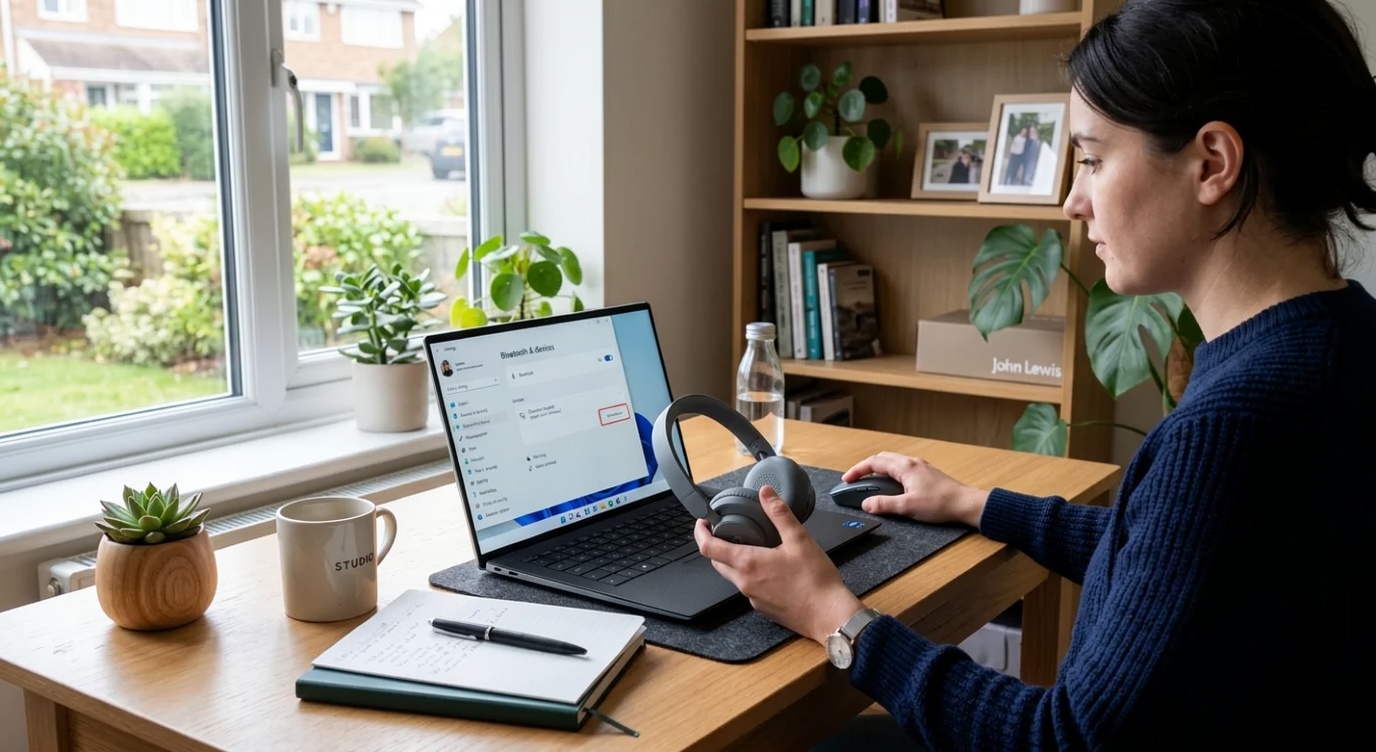
Settings → Bluetooth & devices
Make sure Bluetooth is switched on.
You can also check the Quick Settings area on the Windows 11 taskbar.
If Bluetooth isn’t visible at all, continue with the troubleshooting steps below.
2. Restart Your Bluetooth Device
Sometimes the problem isn’t Windows itself.
Turn your Bluetooth device off, wait a few seconds, and turn it back on.
For headphones or speakers, also check that:
- The battery is charged
- The device is within range
- Pairing mode is enabled
- It isn’t already connected to another device
Then try connecting again.
3. Remove and Pair the Device Again
If Windows sees the device but won’t connect, removing and pairing it again can help.
Go to:
Settings → Bluetooth & devices → Devices
Find your Bluetooth device and remove it.
Then select Add device and choose Bluetooth.
Put your device into pairing mode and try connecting again.
Microsoft recommends removing and re-pairing Bluetooth devices when connection problems persist.
4. Restart Your Windows 11 PC
A simple restart can clear temporary Bluetooth problems.
Select:
Start → Power → Restart
After Windows starts again, open Bluetooth settings and try pairing your device.
This is particularly useful if Bluetooth stopped working after installing software or an update.
5. Check for Bluetooth Driver Problems
An outdated or incompatible Bluetooth driver can cause connection problems.
Open Device Manager and look for:
Bluetooth
Expand the section and locate your Bluetooth adapter.
You can then check whether Windows reports a problem with the device.
If a driver update is available, install the appropriate driver from your PC or adapter manufacturer.
Microsoft specifically recommends checking Bluetooth drivers when troubleshooting connection and audio problems.
6. What If Bluetooth Has Disappeared?
If the Bluetooth option has completely disappeared from Windows 11, the problem may be related to the Bluetooth adapter, driver or device configuration.
Try:
- Restarting your PC
- Checking Device Manager
- Installing the latest Bluetooth driver
- Checking Windows Update
- Checking whether your computer actually supports Bluetooth
Not every desktop PC includes built-in Bluetooth, so hardware compatibility is worth checking if you’re setting up a new computer.
7. Bluetooth Is Connected but There Is No Sound
This is particularly common with Bluetooth headphones and speakers.
If your headphones show as connected but you can’t hear anything:
- Select the Sound icon on the taskbar.
- Check the selected output device.
- Go to Settings → System → Sound.
- Make sure your Bluetooth headphones or speaker are selected as the output.
Microsoft recommends checking the selected audio output and re-pairing the Bluetooth device when Bluetooth connects without producing sound.
For broader audio problems, see our related guide:
How to Fix Windows 11 Sound and Audio Problems
8. Install Windows Updates
Bluetooth compatibility can sometimes be affected by Windows or driver updates.
Go to:
Settings → Windows Update
Check for available updates and restart your PC if Windows asks you to.
Keeping Windows and device drivers up to date can improve compatibility and stability.
9. Run Windows Troubleshooting
Windows 11 includes automated troubleshooting through the Get Help app.
If you’re still experiencing Bluetooth problems, use the Bluetooth troubleshooting option and follow the recommended steps.
Microsoft currently recommends using the automated Bluetooth troubleshooter in the Get Help app on Windows 11.
How to Prevent Bluetooth Problems
Once Bluetooth is working again, a few simple habits can help prevent future problems.
Keep Windows Updated
Regular updates can improve compatibility and fix bugs.
Keep Your Drivers Updated
Bluetooth and chipset drivers can affect wireless connectivity.
Keep Devices Charged
Low battery levels can cause connection and performance problems with wireless accessories.
Stay Within Range
Bluetooth devices work best when they’re reasonably close to your computer and have a clear connection.
When Should You Replace Your Bluetooth Adapter?
If Bluetooth repeatedly disappears or fails to detect any devices despite troubleshooting, the hardware itself may need investigation.
Before buying a replacement adapter, check:
- Whether Bluetooth appears in Device Manager
- Whether the correct driver is installed
- Whether the PC supports Bluetooth
- Whether another Bluetooth device works with the computer
Testing with another compatible device can help determine whether the problem is with Windows or the accessory.
Final Thoughts
Most Windows 11 Bluetooth problems don’t require complicated repairs.
Start with the basics: make sure Bluetooth is enabled, restart your devices, remove and re-pair the connection, check your drivers and install available Windows updates.
If your Bluetooth device connects but doesn’t produce sound, check your Windows audio output settings as well.
And if Bluetooth has disappeared completely, checking Device Manager and your computer’s hardware compatibility should be among your first steps.
Frequently Asked Questions
Why is Bluetooth not working on Windows 11?
Bluetooth may not work because it is disabled, the device isn’t in pairing mode, a driver has a problem, or the Bluetooth hardware isn’t being detected.
Why won’t my Bluetooth device connect to Windows 11?
Try turning Bluetooth off and on, restart the device, remove it from Windows and pair it again. Also check that the device is charged and within range.
Why does Bluetooth keep disconnecting on Windows 11?
Frequent disconnections can be caused by outdated drivers, interference, low battery, distance from the computer or compatibility problems.
Why has Bluetooth disappeared from Windows 11?
Bluetooth may disappear because of a driver or hardware problem. Check Device Manager and make sure your PC supports Bluetooth.
Why is Bluetooth connected but there is no sound?
Windows may be using a different audio output device. Open Settings → System → Sound and select your Bluetooth headphones or speaker as the output.