• SUPPORT@SHSOFTWARES.CO.UK
"Choose from the Digital License range to DVD, USB, and LICENSE CARDS from Our Store."
 
  • About us
  • Contact us
Wishlist
Login / Register
SH Softwares SH Softwares
  • DVD/USB/CARDS
    • Windows 11
      • Windows 11 Pro DVD Pack
      • Windows 11 Pro USB Pack
      • Windows 11 Home DVD Pack
      • Windows 11 Home USB Pack
    • Windows 10
      • Windows 10 Pro DVD Pack
      • Windows 10 Pro USB Pack
      • Windows 10 Home DVD Pack
      • Windows 10 Home USB Pack
    • Microsoft Office
      • Office 2024 Professional Plus Card
      • Office 2024 Professional Plus USB
      • Office 2021 Professional Plus Card
      • Office 2021 Professional Plus USB
      • Office 2019 Professional Plus Card
      • Office 2019 Professional Plus USB
  • Operating Systems
    • Microsoft Windows 11 Digital License
      • Windows 11 Pro
      • Windows 11 Home
      • Windows 11 Education
      • Windows 11 Enterprise
      • Windows 11 Pro For Workstation
    • Microsoft Windows 10 Digital License
      • Windows 10 Pro 32/64 Bit
      • Windows 10 Home 32/64 Bit
      • Windows 10 Education
      • Windows 10 Enterprise
      • Windows 10 Pro for Workstations
  • Microsoft Office
    • Microsoft Office Suites
      • Microsoft Office 2024
      • Microsoft Office 2021
      • Microsoft Office 2019
      • Microsoft Office 365
    • Microsoft Visual Studio
      • Microsoft Visual Studio 2022
      • Microsoft Visual Studio 2019
      • Microsoft Visual Studio 2017
    • Microsoft Office Suites for Mac
      • Microsoft Office Home & Business 2024 For Mac
      • Microsoft Office Home & Business 2021 For Mac
      • Microsoft Office Home & Business 2019 For Mac
    • Microsoft Visio
      • Microsoft Visio 2024
      • Microsoft Visio 2021
      • Microsoft Visio 2019
    • Microsoft Project
      • Microsoft Project 2024
      • Microsoft Project 2021
      • Microsoft Project 2019
  • Windows Server
    • Windows Server
      • Windows Server 2025
      • Windows Server 2022
      • Windows Server 2019
    • Windows Server RDS
      • Windows Server RDS 2025
      • Windows Server RDS 2022
      • Windows Server RDS 2019
    • Exchange Server
      • Exchange Server 2019
      • Exchange Server 2016
      • Exchange Server 2013
    • Microsoft SQL Server
      • Microsoft SQL Server 2022
      • Microsoft SQL Server 2019
      • Microsoft SQL Server 2017
  • Antivirus
    • Kaspersky
      • Kaspersky Standard
      • Kaspersky Plus
      • Kaspersky Premium
    • Norton
      • Norton 360 Deluxe
      • Norton 360 Premium
      • Norton 360 Standard
    • Avast
      • Avast Premium Security
      • Avast Ultimate Suite
    • Eset
      • Eset Nod32 Antivirus
    • Avg
      • Avg Internet Security
  • Computer Programs
    • Corel Draw
      • Corel Licenses
    • Other
      • Power BI Bro
Search
0 Compare
0 items £0.00
Menu
0 items £0.00

Tag Archives: windows 11 bluetooth not working

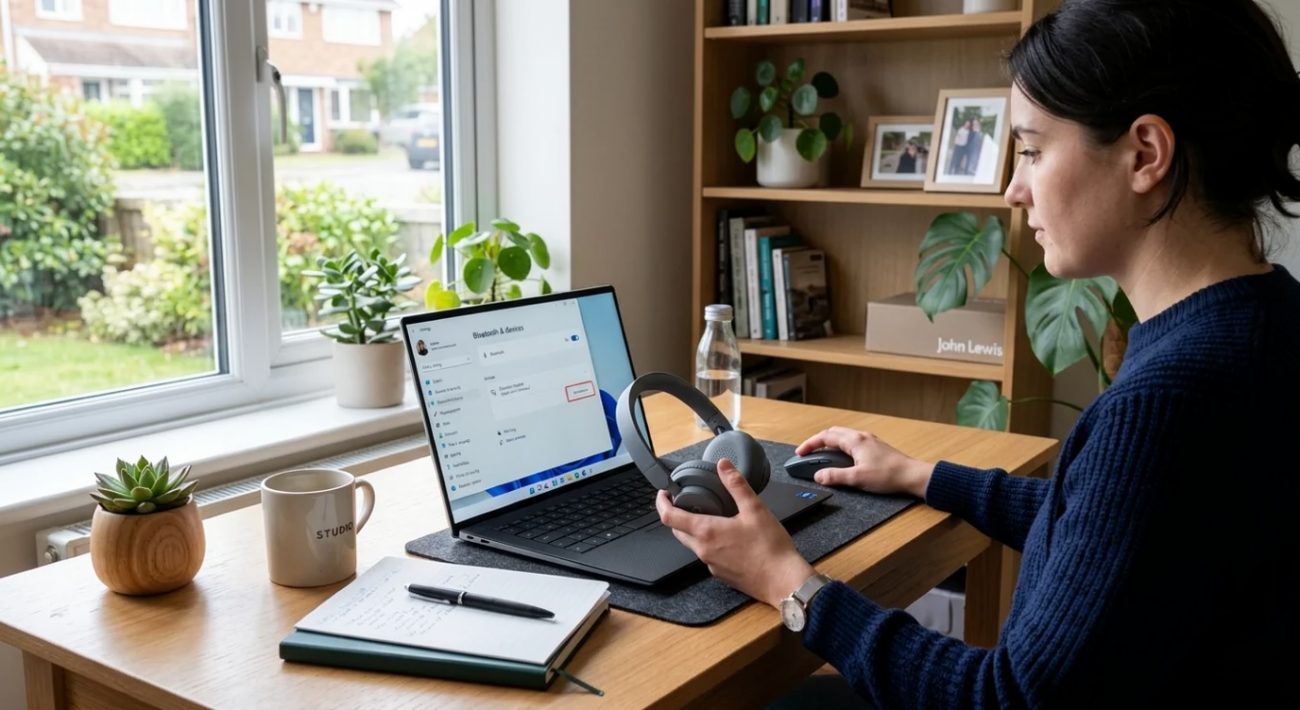
How to Fix Bluetooth Problems in Windows 11 Bluetooth makes it easy to connect wireless headphones, keyboards, mice, speakers and other devices to your PC. But when Bluetooth suddenly stops working, finding the cause isn't always obvious. You might find that your device won't pair, Bluetooth has disappeared from Windows, your headphones connect but produce no sound, or the connection keeps dropping. Fortunately, many Windows 11 Bluetooth problems can be fixed without replacing your hardware. In this guide, we'll look at the most common problems and the practical steps you can try. Common Windows 11 Bluetooth Problems Bluetooth problems can appear in several different ways. You may find that: Bluetooth won't turn on Your Bluetooth device isn't detected Your headphones won't connect Bluetooth keeps disconnecting Your Bluetooth device connects but has no sound Bluetooth disappeared from Windows A keyboard or mouse won't pair Bluetooth stopped working after a Windows update Microsoft also identifies problems such as Bluetooth devices failing to pair, Bluetooth disappearing, disconnections and Bluetooth audio issues as common Windows problems. 1. Make Sure Bluetooth Is Turned On Before changing any advanced settings, check that Bluetooth is actually enabled. Open: Settings → Bluetooth & devices Make sure Bluetooth is switched on. You can also check the Quick Settings area on the Windows 11 taskbar. If Bluetooth isn't visible at all, continue with the troubleshooting steps below. 2. Restart Your Bluetooth Device Sometimes the problem isn't Windows itself. Turn your Bluetooth device off, wait a few seconds, and turn it back on. For headphones or speakers, also check that: The battery is charged The device is within range Pairing mode is enabled It isn't already connected to another device Then try connecting again. 3. Remove and Pair the Device Again If Windows sees the device but won't connect, removing and pairing it again can help. Go to: Settings → Bluetooth & devices → Devices Find your Bluetooth device and remove it. Then select Add device and choose Bluetooth. Put your device into pairing mode and try connecting again. Microsoft recommends removing and re-pairing Bluetooth devices when connection problems persist. 4. Restart Your Windows 11 PC A simple restart can clear temporary Bluetooth problems. Select: Start → Power → Restart After Windows starts again, open Bluetooth settings and try pairing your device. This is particularly useful if Bluetooth stopped working after installing software or an update. 5. Check for Bluetooth Driver Problems An outdated or incompatible Bluetooth driver can cause connection problems. Open Device Manager and look for: Bluetooth Expand the section and locate your Bluetooth adapter. You can then check whether Windows reports a problem with the device. If a driver update is available, install the appropriate driver from your PC or adapter manufacturer. Microsoft specifically recommends checking Bluetooth drivers when troubleshooting connection and audio problems. 6. What If Bluetooth Has Disappeared? If the Bluetooth option has completely disappeared from Windows 11, the problem may be related to the Bluetooth adapter, driver or device configuration. Try: Restarting your PC Checking Device Manager Installing the latest Bluetooth driver Checking Windows Update Checking whether your computer actually supports Bluetooth Not every desktop PC includes built-in Bluetooth, so hardware compatibility is worth checking if you're setting up a new computer. 7. Bluetooth Is Connected but There Is No Sound This is particularly common with Bluetooth headphones and speakers. If your headphones show as connected but you can't hear anything: Select the Sound icon on the taskbar. Check the selected output device. Go to Settings → System → Sound. Make sure your Bluetooth headphones or speaker are selected as the output. Microsoft recommends checking the selected audio output and re-pairing the Bluetooth device when Bluetooth connects without producing sound. For broader audio problems, see our related guide: How to Fix Windows 11 Sound and Audio Problems 8. Install Windows Updates Bluetooth compatibility can sometimes be affected by Windows or driver updates. Go to: Settings → Windows Update Check for available updates and restart your PC if Windows asks you to. Keeping Windows and device drivers up to date can improve compatibility and stability. 9. Run Windows Troubleshooting Windows 11 includes automated troubleshooting through the Get Help app. If you're still experiencing Bluetooth problems, use the Bluetooth troubleshooting option and follow the recommended steps. Microsoft currently recommends using the automated Bluetooth troubleshooter in the Get Help app on Windows 11. How to Prevent Bluetooth Problems Once Bluetooth is working again, a few simple habits can help prevent future problems. Keep Windows Updated Regular updates can improve compatibility and fix bugs. Keep Your Drivers Updated Bluetooth and chipset drivers can affect wireless connectivity. Keep Devices Charged Low battery levels can cause connection and performance problems with wireless accessories. Stay Within Range Bluetooth devices work best when they're reasonably close to your computer and have a clear connection. When Should You Replace Your Bluetooth Adapter? If Bluetooth repeatedly disappears or fails to detect any devices despite troubleshooting, the hardware itself may need investigation. Before buying a replacement adapter, check: Whether Bluetooth appears in Device Manager Whether the correct driver is installed Whether the PC supports Bluetooth Whether another Bluetooth device works with the computer Testing with another compatible device can help determine whether the problem is with Windows or the accessory. Final Thoughts Most Windows 11 Bluetooth problems don't require complicated repairs. Start with the basics: make sure Bluetooth is enabled, restart your devices, remove and re-pair the connection, check your drivers and install available Windows updates. If your Bluetooth device connects but doesn't produce sound, check your Windows audio output settings as well. And if Bluetooth has disappeared completely, checking Device Manager and your computer's hardware compatibility should be among your first steps. Frequently Asked Questions Why is Bluetooth not working on Windows 11? Bluetooth may not work because it is disabled, the device isn't in pairing mode, a driver has a problem, or the Bluetooth hardware isn't being detected. Why won't my Bluetooth device connect to Windows 11? Try turning Bluetooth off and on, restart the device, remove it from Windows and pair it again. Also check that the device is charged and within range. Why does Bluetooth keep disconnecting on Windows 11? Frequent disconnections can be caused by outdated drivers, interference, low battery, distance from the computer or compatibility problems. Why has Bluetooth disappeared from Windows 11? Bluetooth may disappear because of a driver or hardware problem. Check Device Manager and make sure your PC supports Bluetooth. Why is Bluetooth connected but there is no sound? Windows may be using a different audio output device. Open Settings → System → Sound and select your Bluetooth headphones or speaker as the output. Internal Linking Strategy This article should become part of your Windows Troubleshooting SEO Cluster. Link to Previous Troubleshooting Blogs Blog 41: How to Fix Windows Update Errors in Windows 11 Use anchor text: Windows 11 update errors Blog 42: How to Reset Windows 11 Without Losing Your Files Use anchor text: reset Windows 11 without losing your files Blog 43: How to Fix Windows 11 Wi-Fi Problems Use anchor text: Windows 11 Wi-Fi problems Blog 39: Windows 11 Installation Stuck? Here's How to Fix It Use anchor text: Windows 11 installation problems Link to the Main Help Centre Use anchor text: Windows Help Centre This should link back to your main Windows Help Centre page so Blog 44 strengthens the overall cluster. Product Page Internal Links Where relevant, naturally link to: Windows 11 Pro Windows 10 Pro Microsoft Office 2024 Avoid forcing product links into troubleshooting sections. They should appear where they genuinely help the reader. Suggested External Links For credibility, link to Microsoft's official troubleshooting guidance when discussing Bluetooth diagnostics and Windows settings. Microsoft provides dedicated guidance for Bluetooth pairing, missing Bluetooth, disconnections and Bluetooth audio problems. Featured Image Image Prompt A realistic digital photograph of a modern Windows 11 laptop showing the Bluetooth and Devices settings page while a user troubleshoots a wireless Bluetooth headset. The scene is set in a contemporary UK-style home office with natural daylight, a clean desk, notebook and subtle everyday technology. No UK flag or national symbols. Professional, realistic photography, natural colours, authentic home-working environment. Alt Text Windows 11 Bluetooth settings open while troubleshooting a Bluetooth connection
10 Aug
Uncategorized

How to Fix Bluetooth Problems in Windows 11

Posted by author-avatar admin
10/08/2026
0
Is Bluetooth not working properly on your Windows 11 PC? Learn how to fix pairing, connection, disappearing device and Bluetooth audio problems with these simple troubleshooting steps.

Continue reading

Get To Know Us

At SH  Softwares, we specialize in offering downloadable software licenses from top manufacturers. Our mission is to provide our customers with unbeatable prices and exceptional service. We take pride not only in our competitive pricing but also in delivering outstanding customer support. Every customer enjoys 24/7, year-round access to technical assistance.

  • Based in London
  • Email: support@shsoftwares.co.uk
Recent Posts
  • Windows 11 startup recovery screen displayed while troubleshooting a boot problem
    How to Fix Windows 11 Startup Problems
    24/08/2026 No Comments
  • Windows 11 laptop displaying Sound settings while troubleshooting audio problems
    How to Fix Windows 11 Sound and Audio Problems
    17/08/2026 No Comments
Quick Links
  • Home
  • Shop
  • FAQ
  • Knowledge Base
  • My account
  • How-To Page
Policies
  • About us
  • Contact us
  • Privacy Policy
  • Shipping Policy
  • Terms of Service
  • Refund and Returns Policy

© 2026 SH Softwares. All rights reserved

Start typing to see products you are looking for.
  • Menu
  • Categories
  • Operating Systems
    • Windows 11
    • Windows 10
    • Windows 8.1
    • Windows 7
  • Microsoft Office
    • Microsoft Office Suites
      • Microsoft Office 2024
      • Microsoft Office 2021
      • Microsoft Office 2019
      • Microsoft Office 2016
      • Microsoft Office 2013
      • Microsoft Office 2010
      • Microsoft Office 365
    • Microsoft Office Suites for Mac
    • Microsoft Office Programs
      • Microsoft Word
      • Microsoft Excel
      • Microsoft PowerPoint
      • Microsoft Access
      • Microsoft Outlook
      • Microsoft Publisher
    • Microsoft Visual Studio
      • Microsoft Visual Studio 2022
      • Microsoft Visual Studio 2019
      • Microsoft Visual Studio 2017
      • Microsoft Visual Studio 2015
    • Microsoft Visio
      • Microsoft Visio 2024
      • Microsoft Visio 2021
      • Microsoft Visio 2019
      • Microsoft Visio 2016
      • Microsoft Visio 2013
      • Microsoft Visio 2010
    • Microsoft Project
      • Microsoft Project 2024
      • Microsoft Project 2021
      • Microsoft Project 2019
      • Microsoft Project 2016
      • Microsoft Project 2013
      • Microsoft Project 2010
  • Servers
    • Windows Servers
      • Windows Server 2025
      • Windows Server 2022
      • Windows Server 2019
      • Windows Server 2016
      • Windows Server 2012
      • Windows Server 2008
    • Windows Servers RDS
      • Windows Server RDS 2025
      • Windows Server RDS 2022
      • Windows Server RDS 2019
      • Windows Server RDS 2016
      • Windows Server RDS 2012
      • Windows Server RDS 2008
    • Exchange Server
      • Exchange Server 2019
      • Exchange Server 2016
      • Exchange Server 2013
      • Exchange Server 2010
    • Microsoft SQL Server
      • Microsoft SQL Server 2022
      • Microsoft SQL Server 2019
      • Microsoft SQL Server 2017
      • Microsoft SQL Server 2016
      • Microsoft SQL Server 2014
  • Antivirus
    • Kaspersky
    • Norton
    • Avast
    • AVG
    • Eset
  • DVD/USB/CARDS
    • Windows 11 Packs
    • Windows 10 Packs
  • Home
  • Shop
  • About us
  • Contact us
  • Wishlist
  • Compare
  • Login / Register
Shopping cart
Close
Sign in
Close

Lost your password?

No account yet?

Create an Account
Shop
Wishlist
0 items Cart
My account