How to Fix Windows 11 Black Screen Problems

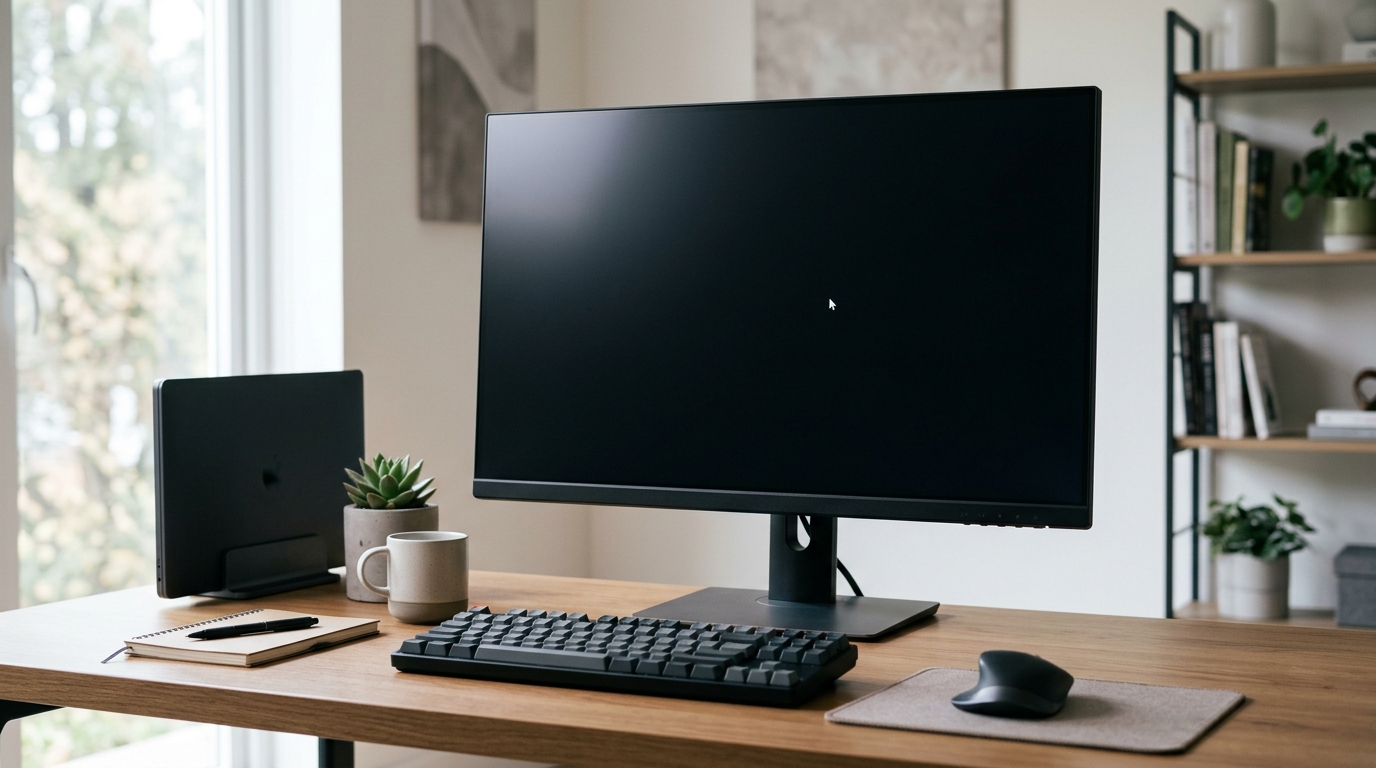
A Windows 11 black screen can be frustrating, especially when your computer appears to be running but nothing shows on the display. You might see a completely blank screen, a mouse pointer against a black background, or a screen that goes dark after you sign in.
The cause is not always serious. A loose monitor cable, a graphics driver problem, a stalled Windows process or an incomplete update may be responsible. In other cases, the problem could involve Windows startup or hardware.
Before resetting your PC or reinstalling Windows, work through the steps below, starting with the simplest checks.
1. Check your monitor and display connections
First, establish whether the problem comes from Windows or the display itself.
- Check that your monitor is switched on and connected to a working power supply.
- Make sure the HDMI, DisplayPort or other display cable is firmly connected at both ends.
- If possible, try another cable or monitor.
- If you’re using a laptop, increase the screen brightness.
- Disconnect unnecessary external monitors, docks and display adapters.
If you use a desktop PC with a dedicated graphics card, check that the monitor cable is connected to the correct video output.
For more guidance, see Microsoft’s external monitor troubleshooting guide.
2. Reset the graphics driver
If the PC appears to be running but the display has gone black, try resetting the graphics driver.
Press these keys together:
Windows key + Ctrl + Shift + B
You may hear a short beep or see the display flicker if Windows responds. Give the computer a few seconds to recover.
This shortcut can help when the display driver has stopped responding, although it will not fix every cause of a black screen.
If the screen remains blank, continue to the next step.
3. Restart Windows Explorer if you can see a cursor
A black screen with a visible mouse pointer can indicate that Windows has started but the desktop interface has failed to load correctly.
Try opening Task Manager:
- Press Ctrl + Shift + Esc.
- If Task Manager appears, look for Windows Explorer in the processes list.
- Select it and choose Restart.
- If Windows Explorer is missing, select Run new task in Task Manager.
- Enter
explorer.exeand press Enter.
If the desktop returns, check for Windows updates and investigate any software or driver changes that happened shortly before the issue began.
4. Restart your computer safely
A temporary Windows problem may clear after a restart.
If you can access the sign-in screen, select the power icon and choose Restart.
If the screen is completely unresponsive, you may need to hold the physical power button until the PC switches off. Wait briefly before turning it on again.
Important: A forced shutdown can cause you to lose unsaved work. Avoid repeatedly interrupting the computer if Windows is visibly installing updates or completing recovery operations.
Disconnect non-essential USB devices before restarting, as a connected device or accessory can sometimes contribute to startup problems.
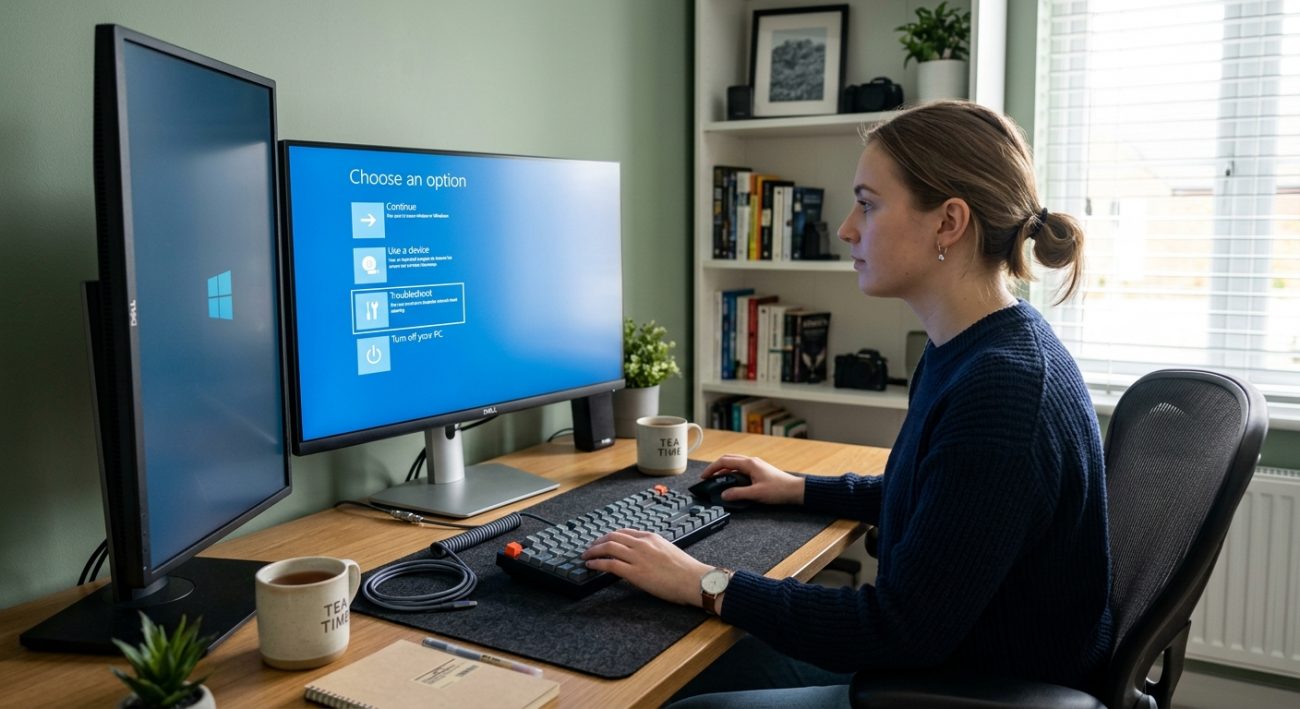
5. Start Windows 11 in Safe Mode
If the black screen keeps returning, Safe Mode can help you determine whether a driver, application or startup service is involved.
If you can reach the sign-in screen:
- Hold Shift while selecting Power > Restart.
- On the recovery screen, choose Troubleshoot.
- Select Advanced options > Startup Settings > Restart.
- When the options appear, press 4 for Safe Mode or 5 for Safe Mode with Networking.
If you cannot reach the sign-in screen, Windows Recovery Environment may start automatically after repeated unsuccessful starts. You can also use appropriate Windows recovery or installation media if necessary. Do not interrupt a computer that is actively installing updates.
Once in Safe Mode, check whether the black screen still occurs. If it does not, investigate display drivers, recently installed software and startup applications.
For Microsoft’s instructions, visit Windows startup settings.
6. Update or roll back your graphics driver
An outdated, damaged or incompatible graphics driver may cause display problems, particularly if the issue started after a driver or Windows update.
If you can access Windows or Safe Mode:
- Right-click Start and open Device Manager.
- Expand Display adapters.
- Right-click your graphics device and select Properties.
- Open the Driver tab.
- If the issue began after a recent driver update, check whether Roll Back Driver is available.
If rolling back is not appropriate, look for a compatible driver through Windows Update or the official website of your PC or graphics-card manufacturer.
Avoid downloading drivers from unfamiliar websites. Installing an incorrect driver may create additional problems.
7. Uninstall a recent Windows update
Did the black screen start immediately after a Windows update? The update may have contributed to the problem.
If you can access the recovery environment, open:
Troubleshoot > Advanced options > Uninstall Updates
Choose the relevant option and follow the instructions. The available choices may vary depending on your Windows installation and recovery configuration.
Only remove an update when there is a reasonable connection between the update and the problem. Once Windows starts normally, check for further guidance and compatible driver updates.
You can read Microsoft’s Windows recovery options before proceeding.
8. Use Startup Repair
If Windows 11 cannot start correctly, Startup Repair may help resolve certain system-file or boot-configuration problems.
From Windows Recovery Environment:
- Select Troubleshoot.
- Open Advanced options.
- Choose Startup Repair.
- Follow the on-screen instructions.
You may need your BitLocker recovery key if device encryption is enabled. Make sure you can access it before proceeding with recovery options.
See Microsoft’s guide to Startup Repair.
9. Consider System Restore or other recovery options
If the black screen continues after driver and startup troubleshooting, System Restore may help if a suitable restore point is available.
System Restore can revert certain system files, drivers and settings to an earlier state. It is not a replacement for backing up important documents.
A full Windows reset or reinstall should be a later option, not the first thing you try. Depending on the method selected, you could lose installed applications, settings or personal files.
Before making major changes:
- Back up accessible personal files.
- Make sure you have access to your Microsoft account and recovery details.
- Check whether BitLocker encryption is enabled.
- Read the consequences of the recovery option you plan to use.
If the screen remains black even before Windows begins loading, or you notice unusual noises, overheating or other signs of hardware failure, consider getting the computer checked by a qualified technician.
How to prevent Windows 11 black screen problems
You cannot prevent every display issue, but a few habits can reduce the likelihood of recurring problems.
- Keep Windows and compatible device drivers updated.
- Install graphics drivers from trusted sources.
- Avoid switching off the PC during updates.
- Disconnect faulty cables and accessories.
- Keep sufficient free space on your system drive.
- Back up important files regularly.
- Record any error message or recent change before troubleshooting.
If the computer is also slow or freezing, our related Windows troubleshooting articles may help identify another underlying issue.
Frequently asked questions
Why does my Windows 11 PC turn on but show a black screen?
Possible causes include a faulty display connection, graphics driver issue, stalled Windows process, incomplete update or hardware fault. Check the monitor and cables first, then try resetting the graphics driver.
How do I fix a black screen with a cursor in Windows 11?
Try opening Task Manager with Ctrl + Shift + Esc. If it opens, restart Windows Explorer or run explorer.exe as a new task. If this fails, use Safe Mode to investigate drivers and startup software.
Can a Windows update cause a black screen?
Yes, a driver compatibility issue or a problem following an update can cause a blank display. If the issue began immediately after an update, consider Safe Mode, rolling back a display driver or using the appropriate recovery option.
Will resetting my PC fix a black screen?
It may help if the cause is Windows software or configuration, but it will not resolve every hardware or display problem. Try less disruptive troubleshooting first and back up important files before resetting Windows.
What if nothing appears on the screen, not even the manufacturer’s logo?
If the display remains blank before Windows starts, the problem may involve the monitor, cable, graphics hardware, power supply or another component. Test another display where possible and seek professional assistance if basic checks do not help.
Conclusion
A Windows 11 black screen does not automatically mean your computer needs replacing or reinstalling. Start with the display connections and graphics reset shortcut, then try Windows Explorer, Safe Mode and recovery tools as appropriate.
Take one step at a time and check whether the display returns before moving on. If the issue persists before Windows loads or appears to involve hardware, professional diagnosis may be the safest option.
Need more Windows help? Explore the SH Softwares Windows troubleshooting guides and choose the next step that matches your problem.