How to Fix Windows 11 Start Menu Not Working

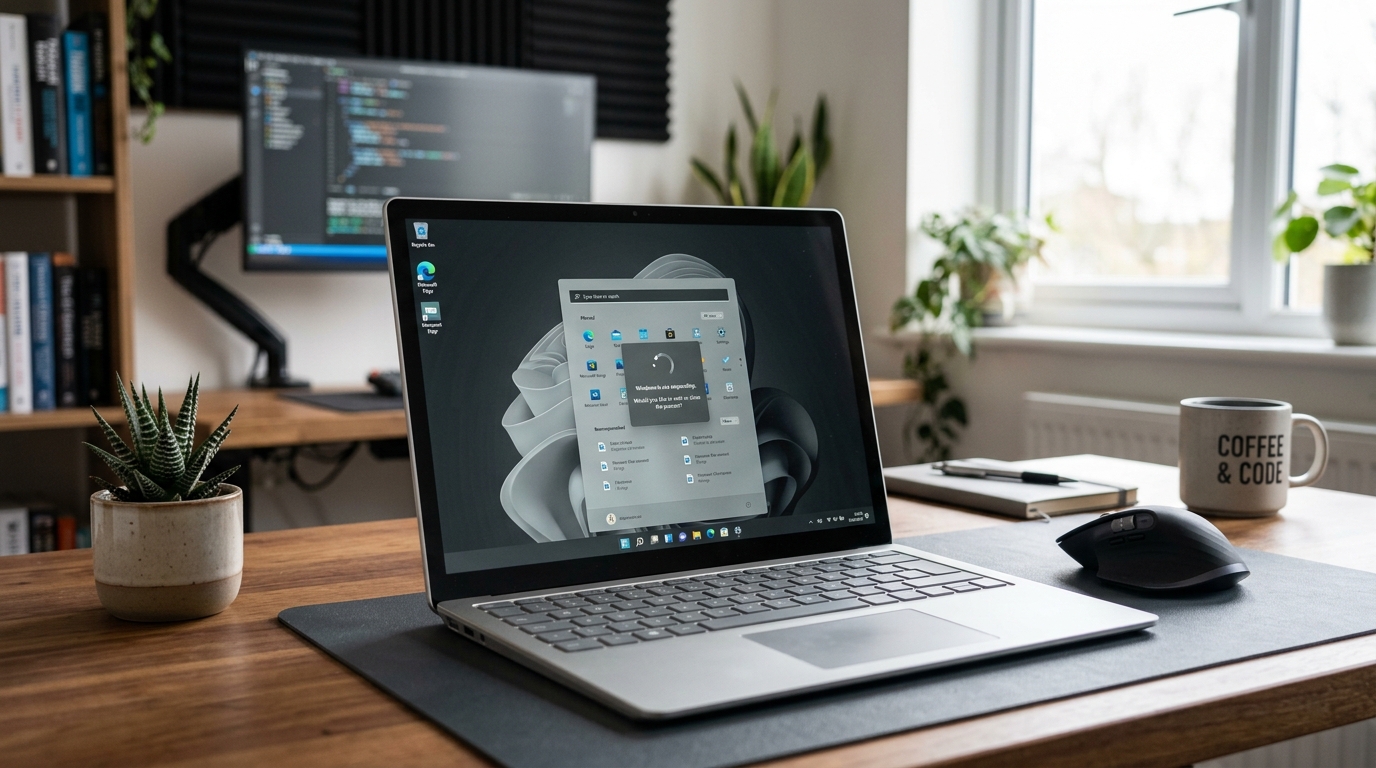
Windows 11 Start Menu Not Working? Start Here
The Start Menu is one of the most important parts of Windows 11. You use it to launch applications, search for settings, access recently used files and shut down or restart your PC.
So when the Windows 11 Start Menu is not working, even basic tasks can suddenly become difficult.
You might find that:
- The Start button does nothing.
- The Start Menu opens and immediately closes.
- The Start Menu freezes.
- Apps are missing.
- The Start Menu opens but Search doesn’t work.
- The taskbar becomes unresponsive at the same time.
Fortunately, a Start Menu problem doesn’t automatically mean that Windows needs to be reinstalled.
Try the following fixes from easiest to more advanced.
1. Restart Your Windows 11 PC
Start with the simplest solution.
Restart Windows and test the Start Menu again.
A temporary Windows process problem can sometimes affect the Start Menu, taskbar and other parts of the desktop interface.
If you can’t use the Start Menu to restart, press:
Ctrl + Alt + Delete
Then select the power option and restart the computer.
You can also use:
Alt + F4
from the desktop to open the Windows shutdown dialogue.
2. Restart Windows Explorer
If the Start Menu is frozen while the rest of Windows is still responding, restarting Windows Explorer is one of the first things worth trying.
Press:
Ctrl + Shift + Esc
to open Task Manager.
Find:
Windows Explorer
Right-click it and select:
Restart
The taskbar and desktop may briefly disappear. They should return after a few seconds.
Now test the Start Menu again.
This can also help when the taskbar, File Explorer and Start Menu are all behaving strangely.
If you’re experiencing File Explorer problems as well, see our guide on how to fix Windows 11 File Explorer not responding.
3. Check Whether Windows Search Is Also Affected
Windows Search and the Start Menu are closely connected from a user-experience perspective.
Try pressing:
Windows key + S
and see whether Search opens.
If both Search and the Start Menu are behaving strangely, you may have a wider Windows interface problem rather than a Start Menu-only issue.
Our Windows 11 Search troubleshooting guide covers additional steps you can try.
If Search works normally but the Start Menu doesn’t, concentrate specifically on the Start Menu and Windows components.
4. Install Windows Updates
Microsoft regularly releases Windows updates containing security improvements, bug fixes and system changes.
If your Start Menu recently started behaving strangely, check whether Windows has any pending updates.
Go to:
Settings → Windows Update
and select:
Check for updates
Install available updates and restart your PC when prompted.
If Windows Update itself is giving you problems, see our guide on how to fix Windows 11 update errors.
Keeping Windows updated can also make troubleshooting easier because you know you’re working with a supported and current system version.
5. Check Whether the Taskbar Is Also Frozen
Look at the taskbar.
Can you:
- Click pinned applications?
- Open the notification area?
- Change the volume?
- Open network settings?
- Switch between applications?
If the Start Menu and the taskbar are both frozen, restarting Windows Explorer is particularly important.
If only the Start Menu is affected, the cause may be more specific.
Identifying exactly what is broken can prevent you from making unnecessary changes.
6. Use Task Manager to Launch Applications
If the Start Menu isn’t working, you can still launch many Windows tools through Task Manager.
Press:
Ctrl + Shift + Esc
Then select Run new task.
You can enter the name of a Windows application or tool you need to access.
This can be useful while troubleshooting because it gives you another way to reach settings and utilities when the Start Menu isn’t available.
7. Check Your Available Storage
Windows needs available storage for temporary files, updates and normal system operations.
If your main drive is almost full, it’s worth checking your storage before attempting more advanced repairs.
Go to:
Settings → System → Storage
Check how much free space is available.
If your drive is running low, our guide on how to free up space on Windows 11 explains several safe ways to remove unnecessary files.
Don’t delete system files manually unless you know exactly what they are.
8. Run System File Checker
If the Start Menu continues to malfunction, Windows’ built-in system repair tools may be worth considering.
System File Checker, commonly called SFC, can check protected Windows system files for problems.
You can run supported Windows repair commands through Windows Terminal or Command Prompt with administrator permissions.
Because command-line repairs can affect important Windows components, use Microsoft’s current instructions rather than copying commands from an unknown website.
This is a more advanced step, so try restarting Windows and checking updates first.
9. Check Windows Component Health
If system-file checks don’t resolve the problem, Windows also provides servicing and repair tools for system components.
These tools can be useful when Windows components are damaged or inconsistent.
Again, this is not something you need to do immediately.
If your PC has several unrelated problems — such as Windows Update errors, broken Search, File Explorer crashes and Start Menu problems — broader Windows repair may make more sense than treating every symptom separately.
10. Create a New Windows User Account for Testing
This is a useful diagnostic step when the Start Menu works for one Windows account but not another.
A damaged or corrupted user profile can sometimes cause problems that don’t affect every account on the PC.
If another account works normally, the problem may be related to the original Windows profile rather than the entire operating system.
Don’t delete your existing account just because another account works.
First make sure your important documents and settings are backed up and understand what is stored in each profile.
11. Check Recently Installed Software
Think about when the Start Menu problem began.
Did you recently install or update:
- Antivirus software?
- Start Menu customisation software?
- Windows interface utilities?
- System optimisation software?
- File-management software?
- Other desktop customisation tools?
Some third-party programs interact directly with Windows Explorer, the taskbar or other parts of the Windows interface.
If the problem appeared immediately after installing a program, investigate that software before making major Windows changes.
12. Restart Windows Explorer Again After Troubleshooting
If the Start Menu temporarily works after restarting Windows Explorer but later stops responding again, that pattern is useful.
It may suggest that another application or Windows process is interfering with the desktop shell.
Keep track of what you were doing immediately before the problem returned.
For example:
- Opening a particular application
- Connecting an external drive
- Opening a large folder
- Starting a cloud-sync service
- Installing an update
Finding a repeatable pattern can make the underlying cause much easier to identify.
Windows 11 Start Menu Still Not Working?
If you’ve worked through the basic fixes and the Start Menu is still broken, identify the exact symptom.
Start Menu won’t open at all
Try:
- Restarting Windows
- Restarting Windows Explorer
- Checking Windows Update
- Running Windows system-file checks
Start Menu opens but immediately closes
Check:
- Windows updates
- Windows Explorer
- Recent software installations
- User-profile behaviour
Start Menu freezes
Check:
- Available storage
- Overall Windows performance
- Taskbar behaviour
- File Explorer behaviour
- Background applications
Start Menu and Search are both broken
Read our guide on how to fix Windows 11 Search not working.
Start Menu and File Explorer are both affected
See our guide on how to fix Windows 11 File Explorer not responding.
Could a Slow PC Cause Start Menu Problems?
A slow Windows 11 computer may make the Start Menu appear frozen even when the underlying system is still processing an operation.
If applications are also taking a long time to open, folders are slow and Windows generally feels sluggish, the problem may be broader than the Start Menu.
Read our guide on how to fix a slow Windows 11 PC for additional performance checks.
Storage can also play a role, particularly if your system drive is almost full.
Should You Reset Windows 11?
A complete Windows reset shouldn’t normally be your first response to a Start Menu problem.
Try the less disruptive options first:
- Restart Windows.
- Restart Windows Explorer.
- Check for updates.
- Check available storage.
- Investigate system-file problems.
- Look for recently installed software.
- Test whether another user account behaves normally.
If the PC has several serious Windows problems and normal troubleshooting hasn’t worked, recovery options may eventually be appropriate.
Before resetting Windows, make sure important documents, photos and other personal files are backed up.
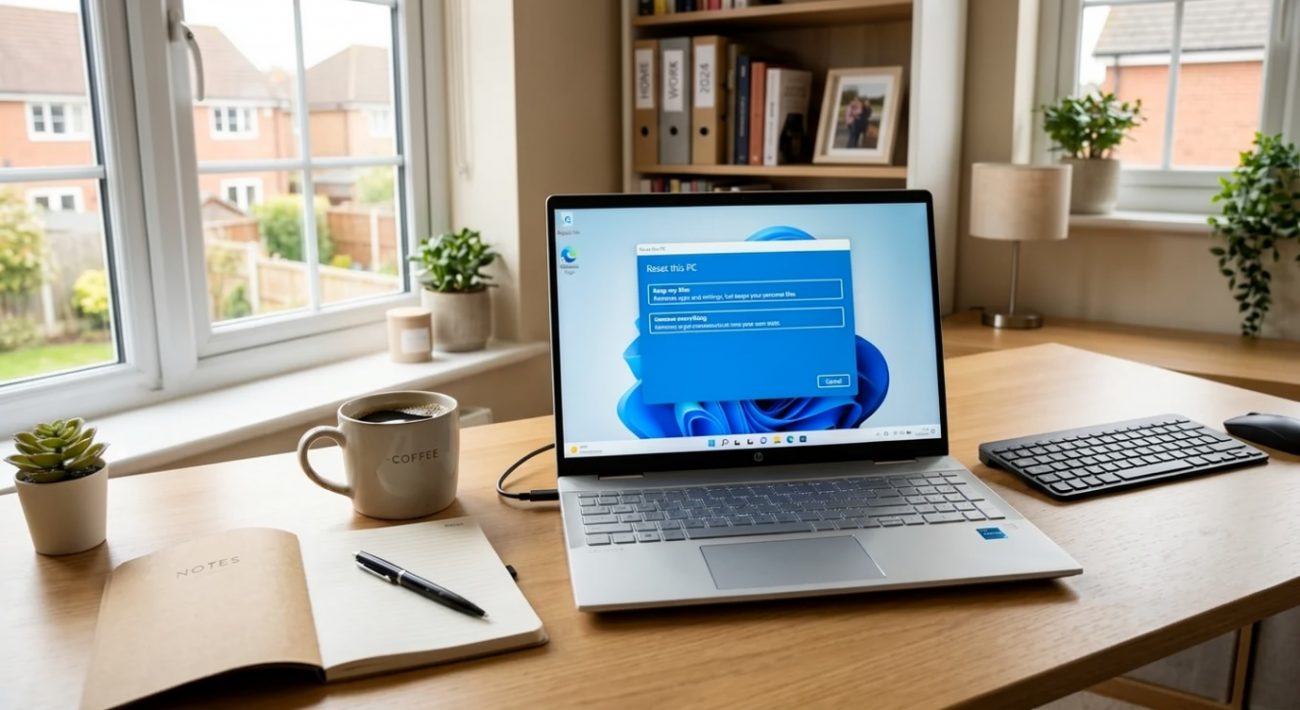
Our guide on how to reset Windows 11 without losing your files explains the process in more detail.
Final Thoughts
Windows 11 Start Menu not working can be frustrating, but it doesn’t necessarily indicate a major Windows failure.
Start with the basics. Restart your PC and Windows Explorer, then check for Windows updates.
If that doesn’t work, look for clues. Is Search also broken? Is File Explorer freezing? Is the whole computer slow? Did the problem begin after installing new software?
Those details can help you determine whether the Start Menu is the actual problem or simply one symptom of a wider Windows issue.
And before considering a complete Windows reset, work through the less disruptive fixes first.
Frequently Asked Questions
Why is my Windows 11 Start Menu not working?
The Start Menu can become unresponsive because of temporary Windows Explorer problems, pending updates, system-file issues, software conflicts or wider Windows performance problems.
How do I restart the Windows 11 Start Menu?
There isn’t normally a separate Start Menu restart button. Restarting Windows Explorer through Task Manager can refresh the Windows desktop interface and may resolve temporary Start Menu problems.
What should I do if the Windows 11 Start Menu won’t open?
Restart your PC first. If the problem continues, open Task Manager with Ctrl + Shift + Esc, restart Windows Explorer and check for available Windows updates.
Can low storage affect the Windows 11 Start Menu?
Low storage can contribute to wider Windows performance problems. Check Settings → System → Storage and free up space if your main drive is nearly full.
Should I reset Windows 11 if the Start Menu is broken?
Not immediately. Try restarting Windows Explorer, installing updates and checking system files before considering a full Windows reset.
Why are the Start Menu and Search both not working?
If both features are affected, the issue may involve wider Windows interface components. Follow the troubleshooting steps in our Windows 11 Search guide as well.