Blog 49: How to Fix Windows 11 Printer Problems

Windows 11 Printer Problems: What Should You Check First?
Printers usually work without much attention, but problems can appear after a Windows update, driver change, network issue or printer configuration change.
If you’re dealing with Windows 11 printer problems, don’t assume that the printer itself has failed. In many cases, the issue is caused by the connection, print queue, driver or Windows printer settings.
Before trying anything complicated, check that the printer is switched on, has paper and isn’t showing an error on its display.
If everything looks normal, work through the following fixes.
1. Restart Your Printer and PC
It sounds obvious, but restarting both devices can solve surprisingly common printing problems.
Turn the printer off, wait around 30 seconds and turn it back on. Then restart your Windows 11 PC.
This can clear temporary communication problems between Windows and the printer.
If you’re using a wireless printer, also check that your PC and printer are connected to the same Wi-Fi network.
2. Check Whether Your Printer Is Offline
One of the most common Windows 11 printer problems is a printer appearing as offline.
Open:
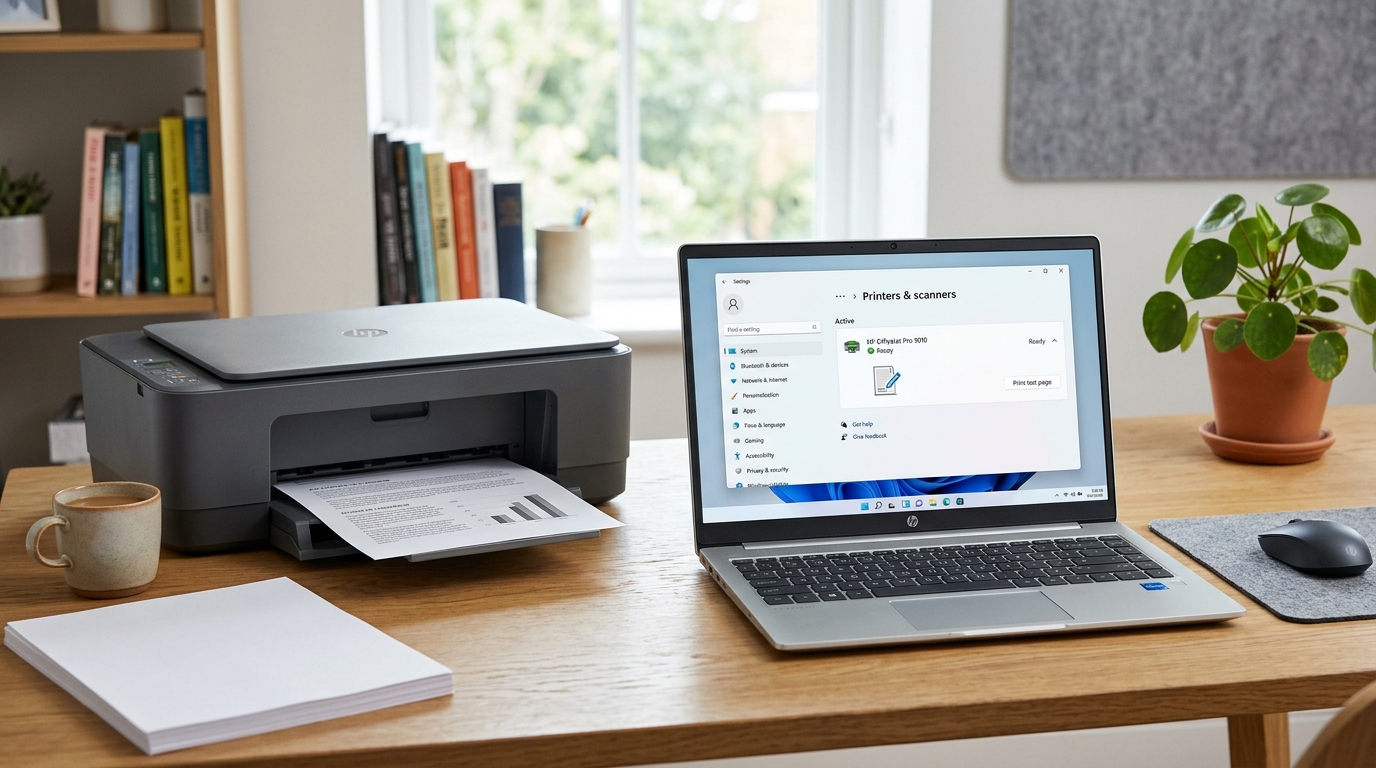
Settings → Bluetooth & devices → Printers & scanners
Select your printer and check its current status.
If Windows shows the printer as offline, check the physical connection or Wi-Fi connection first.
For a USB printer, try another USB port if one is available.
For a wireless printer, check the printer’s network settings and make sure it is connected to your home or office Wi-Fi.
3. Remove and Add the Printer Again
If Windows can see the printer but you still cannot print, removing and adding it again can help.
Go to:
Settings → Bluetooth & devices → Printers & scanners
Select the affected printer and choose Remove.
After removing it, return to the printer settings and select Add device.
Windows will search for available printers.
This is particularly useful when a printer was previously working but has stopped responding after a system or network change.
4. Clear Stuck Print Jobs
Sometimes the printer itself is fine, but an old print job is preventing anything else from printing.
Open your printer settings and look for the print queue.
If several documents are waiting, cancel the jobs and try printing a small test document again.
A stuck document can make it appear that the entire printer is broken when the problem is actually the print queue.
5. Check the Printer Driver
Drivers allow Windows to communicate correctly with hardware.
If your printer isn’t working properly, an outdated or incompatible driver could be responsible.
Check the printer manufacturer’s support website for the latest Windows 11 driver for your specific model.
Avoid downloading drivers from unknown websites. Using the manufacturer’s official support page is generally the safer approach.
If you’re experiencing wider Windows issues after an update, you may also find our guide on Windows 11 update errors useful.
6. Make Sure Windows Has the Correct Default Printer
If you have more than one printer installed, Windows may be sending your documents to the wrong device.
Go to:
Settings → Bluetooth & devices → Printers & scanners
Select the printer you normally use and set it as the default printer if necessary.
This simple setting can explain why a document appears to have printed successfully but nothing comes out of the expected printer.
7. Check Your Wi-Fi Connection
Wireless printers depend on your network connection.
If your printer has disappeared from Windows, check whether it is still connected to Wi-Fi.
You can also restart your router if other devices are experiencing connection problems.
If your Windows 11 PC is having wider wireless issues, see our guide on how to fix Wi-Fi problems in Windows 11.
The important thing is to determine whether the problem is limited to the printer or affects your entire network.
8. Run Windows Troubleshooting
Windows includes troubleshooting tools that can help identify certain hardware and system problems.
Depending on your version of Windows 11, troubleshooting options can be found under:
Settings → System → Troubleshoot
Run the relevant troubleshooter if one is available for your printing issue.
It may not solve every problem, but it can identify configuration problems that aren’t immediately obvious.
9. Restart the Print Spooler
The Windows Print Spooler service manages printing jobs.
If print jobs are stuck or the printer repeatedly fails to respond, restarting the service can sometimes help.
Press:
Windows key + R
Type:
services.msc
Press Enter.
Find Print Spooler in the list.
Right-click it and select Restart.
Then try printing again.
This is a useful step when the printer is detected but documents remain stuck in the queue.
10. Check for Windows Updates
Microsoft regularly releases Windows updates containing security improvements, bug fixes and compatibility changes.
Go to:
Settings → Windows Update
and select Check for updates.
If an update is available, install it and restart your computer when prompted.
However, if the printer stopped working immediately after a recent update, the situation may require a different approach. Check the printer manufacturer’s support information and Microsoft’s troubleshooting guidance before making further changes.
11. Try Printing From Another Application
It’s worth checking whether the problem affects one application or Windows generally.
For example, if you cannot print a document from Microsoft Word, try printing a simple webpage or text file.
If another application prints successfully, the printer may be working correctly and the problem could be related to the original application or document.
This quick test can save you from changing printer settings unnecessarily.
12. When Should You Reinstall the Printer?
If you’ve tried the basic fixes and your printer still doesn’t work, reinstalling it may be worthwhile.
Remove the printer from Windows, restart your PC and then add it again.
For more persistent issues, uninstalling the existing printer software and installing the latest driver from the manufacturer’s official website can provide a cleaner installation.
Before doing this, make a note of your printer model so you download the correct software.
What If Windows 11 Still Can’t Find the Printer?
If Windows cannot find the printer at all, check the basics first:
- Is the printer switched on?
- Is it connected to Wi-Fi?
- Is the printer connected to the same network as your PC?
- Is the USB cable working?
- Does the printer display an error?
- Has the printer recently changed IP address?
- Is the correct driver installed?
- Can another computer see the printer?
If other devices can print successfully, the issue is more likely to be specific to your Windows 11 PC.
If you’re experiencing several Windows problems rather than just a printer issue, our Windows Help Centre provides additional troubleshooting guides.
Could Windows 11 Performance Be Affecting Printing?
Usually, printer problems aren’t caused by a slow computer. However, if Windows is generally taking a long time to respond, applications may also appear to hang when sending documents to a printer.
If your computer has become noticeably slower, see our guide on how to fix a slow Windows 11 PC.
Freeing up storage can also help keep a Windows installation in better shape. Our guide on how to free up space on Windows 11 covers practical storage-cleanup steps.
When Is It Time to Replace the Printer?
If the printer works with other computers but consistently fails on one Windows 11 PC, replacing the printer probably isn’t the first thing to consider.
However, an older printer may eventually have limited driver support for newer versions of Windows.
Before buying a replacement, check whether the manufacturer still provides Windows 11-compatible software for your printer model.
A new printer can be worthwhile if the existing device is several years old, frequently jams, has hardware faults or no longer receives useful driver support.
Final Thoughts
Windows 11 printer problems can often be fixed without replacing the printer.
Start with the simple checks: restart the devices, verify the connection, clear stuck print jobs and make sure Windows has the correct printer selected. If that doesn’t work, look at the printer driver, Print Spooler service and Windows updates.
The key is to identify where the problem actually occurs. If other devices can print normally, concentrate on your Windows 11 PC. If nobody can connect to the printer, investigate the printer or network instead.
And if you’re experiencing several Windows 11 issues at once, working through a structured troubleshooting process is usually much easier than changing multiple settings at random.
Frequently Asked Questions
Why is my printer not working with Windows 11?
Check the printer connection, restart both devices, clear the print queue and make sure the correct printer driver is installed. Removing and adding the printer again can also help.
Why does Windows 11 say my printer is offline?
The printer may have lost its Wi-Fi connection, changed network address or encountered a communication problem with Windows. Restarting the printer and checking its network connection are good first steps.
How do I reconnect my printer to Windows 11?
Go to Settings → Bluetooth & devices → Printers & scanners, remove the printer if necessary and select Add device to reconnect it.
Why are my print jobs stuck in Windows 11?
A stuck print queue or Print Spooler problem can prevent documents from printing. Cancel the queued jobs and restart the Print Spooler service if necessary.
Do I need a new printer for Windows 11?
Not necessarily. Many existing printers work with Windows 11. Check the manufacturer’s website for compatible drivers before replacing the printer.